
3.8 Track delivery with projects
A project organizes work around a delivery goal. A product launch project might link report-writing tasks, a content employee, a discussion group, a weekly review automation, product references, and the final deliverable. The same record can belong to more than one project.
1. Create a project
Choose Projects > New project in the sidebar to describe the goal directly, or open it within a business. The current business or business filter is filled in. With no business selected, it starts in General work; if you have several business areas, you can change the selection before saving. Describe the goal and the work in Project description; Markdown is supported and the full text becomes the goal. The name is drafted from the first line and can be edited; expand the due date only if needed. Closing the dialog keeps the unsubmitted draft for the same connection and entry, so you can reopen and continue. This step only creates the project, which remains available after a refresh.
The business area is fixed when the project is created. Use General work for work without a dedicated business area.
The Projects page in the left sidebar lists all projects by business and status. In a project's details, you can start or add project conversations and add read-only references to other business areas.
2. Link existing work
Open the project and choose Link work. Select a content type, search by name, select records, and confirm. You can link tasks, groups, employees, automations, reference materials, and deliverables.
Candidates are records you can access within the permitted business scope. A General work project can include employees from other business areas; this does not expand their execution permissions. Retired employees, archived groups and automations, and withdrawn materials cannot be newly linked.
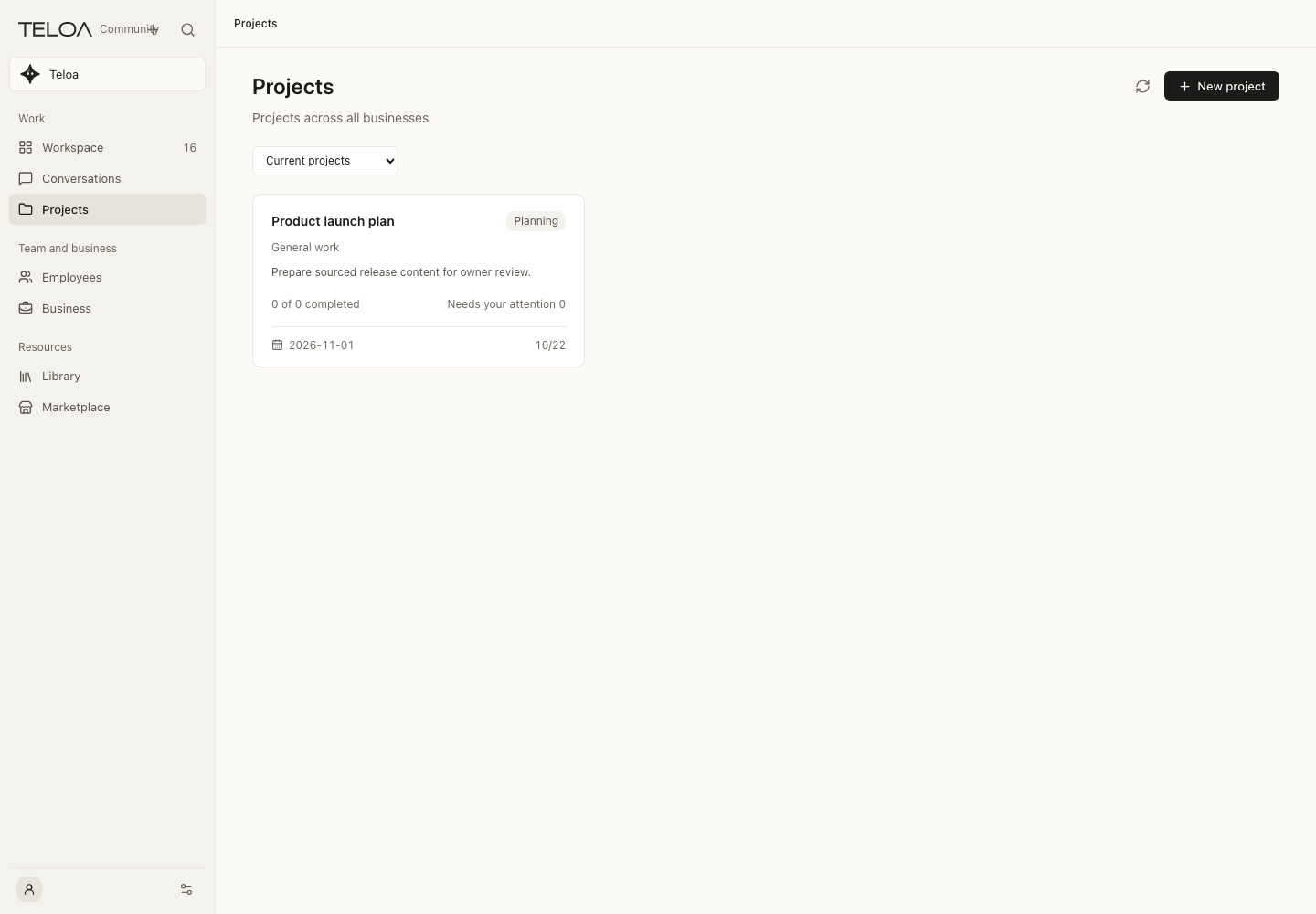
0.2.4 actual interface with example data. An example planning project with a goal and due date. It is not completed work.
Tasks actually created by a linked automation appear automatically, as do deliverables from project tasks. A record linked both directly and automatically appears once. To remove an automatically included record, remove the link at its source. It remains if another project link still includes it.
Start a project conversation
Under Project conversations in the project details, choose New conversation, enter a topic, and choose whether to use long-term memory. You can also Add existing conversation from eligible ordinary conversations in the same business area. Conversations that are running or have pending work cannot be added at that time.
Project conversations use this project's background. Removing one from the project keeps the conversation and its history; memory already accumulated in the project stays with that project. Once a conversation has messages, its long-term memory mode cannot be changed directly. Start a new conversation to use a different mode.
Set up project context and memory
Open Project context in the project details:
- Edit the brief, add project rules, or save a memory manually.
- Under Memory and materials, select the materials to use. Mark essential material as Required for work; other material is selected according to the current question. Linking material under Link work does not by itself select it as model input.
- Continue the project conversation. The project goal, brief, active rules, and required materials are used for subsequent messages. Other materials and memories are selected for relevance and the current input capacity; every item is not read on every turn.
With Use long-term memory, a conversation can use relevant project memories, explicitly shared memories, and accessible role experience. Do not read or write long-term memory stops reading and accumulating these memories; the project goal, rules, selected materials, and current conversation history remain effective. Personal preferences require the project's separate Use personal preferences setting, which is off by default. Edit or withdraw them under Manage personal preferences.
For Automatic learning, choose decisions and experience, verified facts and experience, or pause accumulation. Content with the required supporting evidence can be saved as project memory. Uncertain or conflicting content appears under For review: inspect the text and original evidence before accepting or rejecting it. Pausing accumulation still allows existing memory to be read. Check Used this time for the sources actually used and History for changes. Saving successfully does not mean every answer uses all saved content; verify the model's conclusions.
Sharing, withdrawal, and data scope
Project background and memory are read within their owner, project, and business scope. Saving them does not make them common knowledge for every employee, and selecting materials does not expand their existing permissions.
Choose Share on an active saved memory and select a target project you can access. Sharing pins a version; later source edits do not replace it automatically. The receiving project can compare changes before adopting a newer version. Rules are not shared through this memory-sharing action.
Revoke sharing stops future use through that share. Withdraw on the source memory makes all its shared versions unreadable, while audit revisions are retained. Subsequent model input checks which sources remain available. Withdrawal cannot retrieve content already sent to a remote model. When you use a remote chat model, authorized project context is sent to that service; see Privacy and permissions.
3. Follow progress and results
Progress uses actual task states: only completed tasks count as completed, cancelled tasks are excluded from the total, and projects without countable tasks show a dash. A saved deliverable or a pending review does not mean a task is complete.
Needs you shows items requiring your attention within these tasks. Open a task or deliverable to review, approve, or continue its work. Project details refresh periodically; you can also choose Refresh.
You maintain the project status: Planning, In progress, In review, or Completed. Marking a project complete while tasks remain unfinished requires confirmation. It neither completes those tasks nor stops automations.
4. Archive and restore
Choose Archive project in the details and confirm. Archived projects are read-only: you can read or withdraw existing context, but cannot start project conversations or change memory policies. Find them under the Archived directory filter. Restore project returns the project to In progress so you can edit it and link work again.
Archiving changes only the project. Linked groups, tasks, automations, employees, and materials keep their states. If linked content becomes unavailable, its entry remains without exposing its contents. You can remove that link from an unarchived project.
When saving fails
After a connection interruption, check the project directory. If a pending-creation notice appears, choose Recover project to continue the same creation request. Avoid immediately creating another project. If an edit has a version conflict, keep a copy of your input, cancel, refresh the project, and review the other changes before saving again.
You explicitly start or add project conversations. Saving a project does not automatically break down its goal or dispatch tasks, and projects do not introduce member permissions of their own. Execution, approvals, and permissions continue to follow each record's existing rules.