
3.1 Workspace and Needs your attention
Workspace helps you return to current work. Needs your attention brings together items waiting for your decision or action. Read what is blocking an item before choosing the next step.
Continue work from Workspace
- Open Workspace and review the options for continuing work and opening recent work.
- Open the relevant task or conversation and read its latest progress and results.
- For a complete list, open the task or conversation directory. Recent records are not the full history.
Removing an item from Recent work only changes the shortcut list. It does not delete the original conversation. Find the original in the conversation directory.
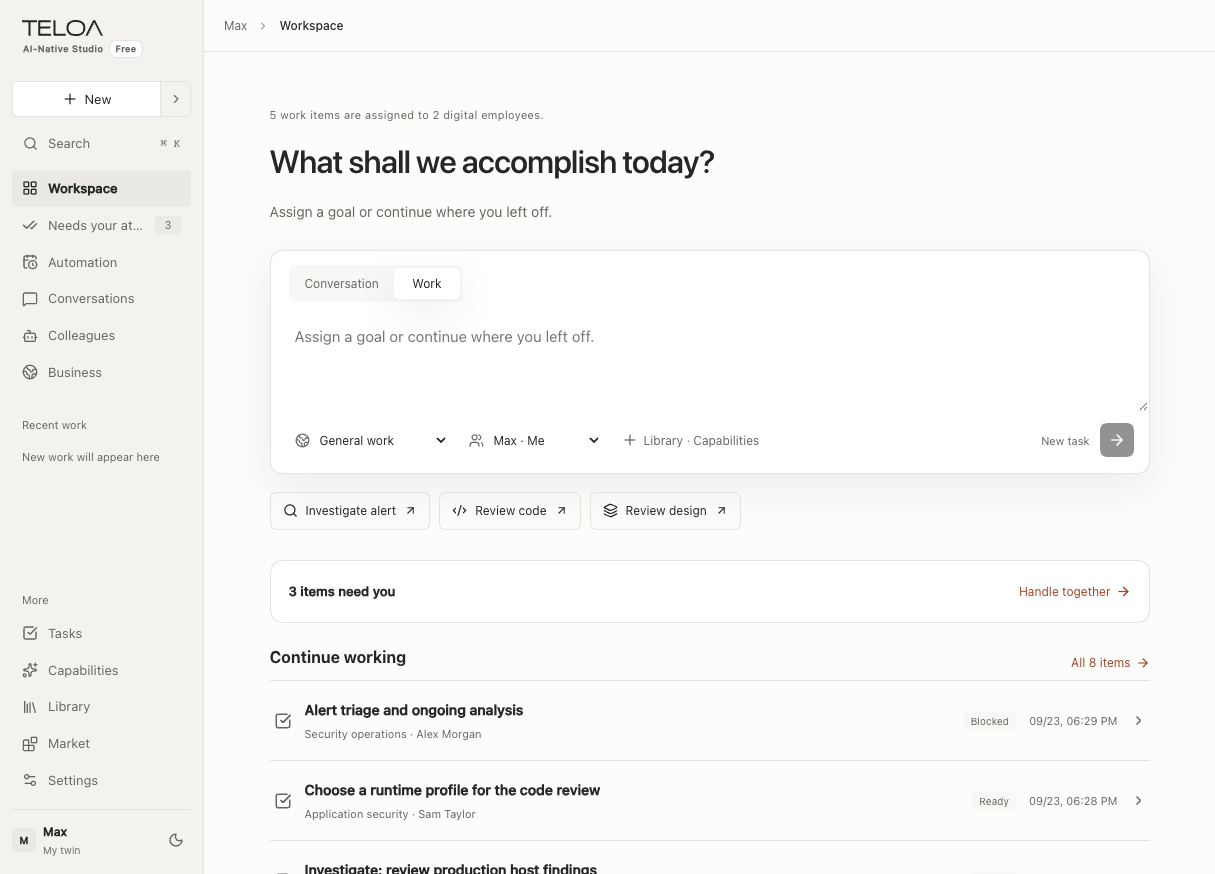
English interface with sample data. The lower “Continue work” section lists tasks; the attention banner above it opens items that need a decision.
Handle items in Needs your attention
Open an item's details and check what it concerns, why it was raised, the proposed action, and its scope of impact. If the page asks for a reason, explain this decision before submitting it.
| Type | What you need to decide |
|---|---|
| Tool or security action | Whether the specific action and parameters are allowed and supported by evidence |
| Blocked task | Whether materials, permissions, or model configuration are missing |
| Content awaiting review | Whether the result meets the original requirements and needs more supporting material |
After submitting, use the status returned by the server. If the network fails or a response is pending, do not repeatedly click conflicting decisions. Reopen the same item and check its state.
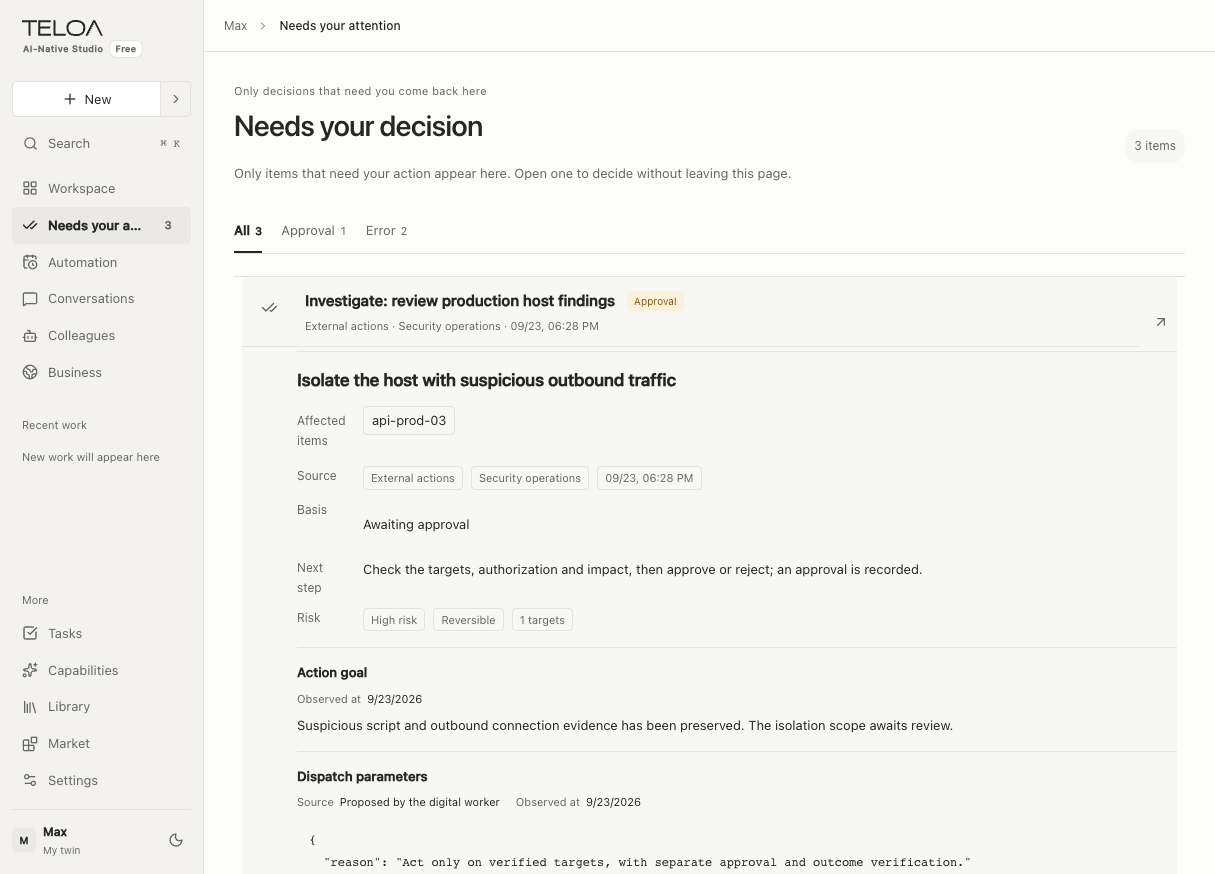
English interface with sample data. Review the expanded item's target, risk, action details, and parameters. The item shown is still awaiting approval.
Permissions do not expand automatically
Approving a specific action does not permanently authorize the entire tool set. Change ongoing role permissions in the colleague's configuration. See authorization boundaries.