
3.5 Tasks and task templates
A task records the goal, owner, inputs, and deliverables for a piece of work. A template stores reusable requirements; it does not schedule execution.
Create a task
Choose Assign task in the task directory. Specify its name, business area, input materials, and acceptance criteria. Assign the owner from the details after creating the task; saving or handing off a task does not start execution. Link a group when the task needs its collaboration context. Select available skills when the work needs a particular method.
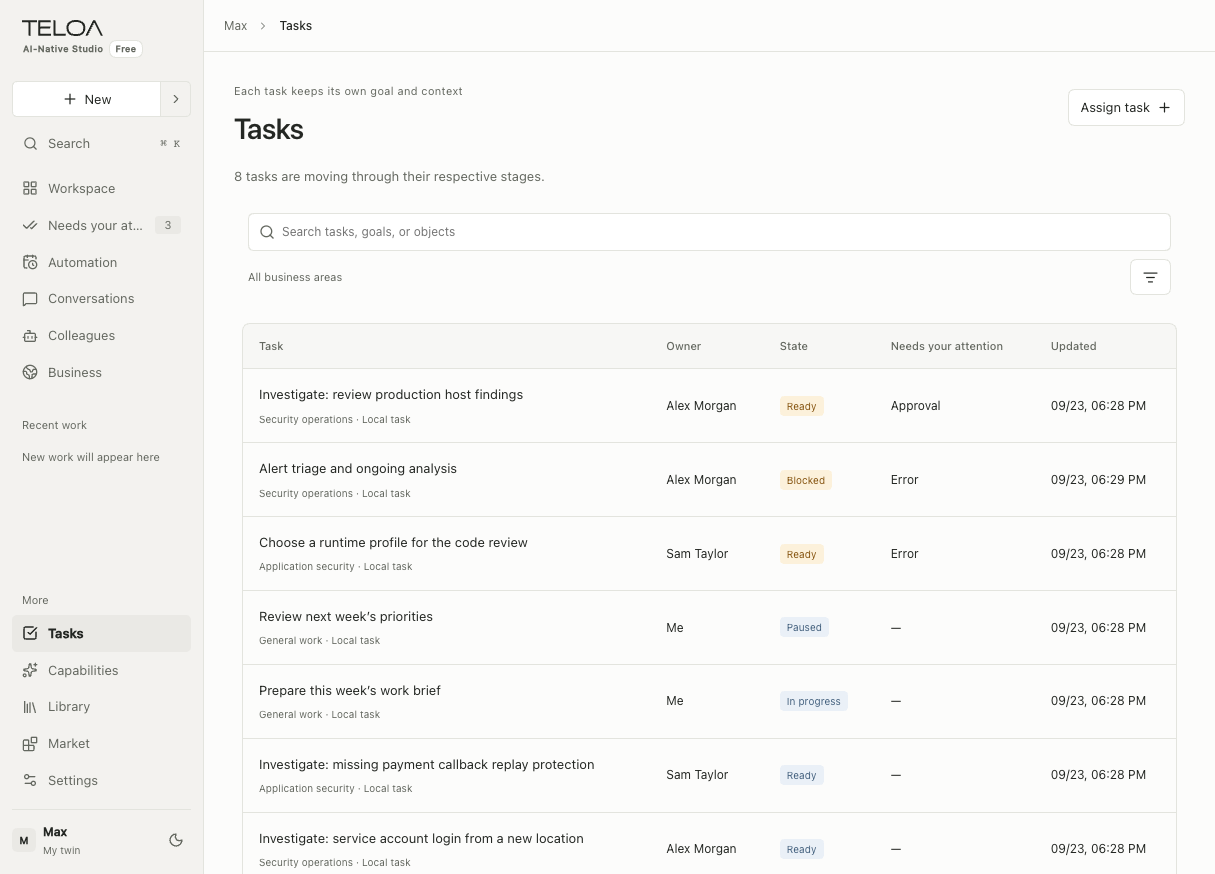
English interface with sample data. Use the upper-right button to assign a task. The owner, status, and attention columns help identify work to follow up on.
Goal: identify three changes this week from the attachments.
Output: four columns—change, source, impact, and open questions.
Boundary: read only the provided materials. Do not access other sources or send the results.
After creating the task, check its actual definition on the details page, then follow execution. Use the task name to make it easy to find; put the full requirements in the body.
Read execution records
A task may have several runs. Check the time, status, inputs, and result of the specific run so you do not mistake an earlier result for the current deliverable. If it fails, first identify whether the error occurred during preparation, a model call, or tool execution.
Stop and continue
Clicking stop sends a request. Wait for the status to settle, then confirm whether execution has ended. If the status is still changing, check the records. Do not immediately delete materials or shut down the database.
For work that can continue, use the recovery option provided in the interface. Not every failure can resume from the same step without losing progress. Before rerunning work, check whether the earlier run had external effects to avoid repeating an action.
Save a task as a template
Use the relevant save-as-template option to capture stable input requirements, steps, and output formats. Do not save this task's confidential materials or personal credentials in a general template. Templates are managed in Capabilities. Using a template creates a new task; scheduled work needs a separate automation.
To finish, check that the template is easy to find, its input requirements are clear, and a new task does not unexpectedly inherit sensitive content from the old one.