
3.6 Schedule recurring work
An automation suits clearly defined work that repeats. First validate the inputs, permissions, and results with a single task, then schedule it.
Create an automation
- Open Automation, create a schedule, and enter its name, business area, and responsible colleague.
- Specify where each run gets its inputs, where outputs go, and how to determine completion.
- Set the timing rule and time zone. Check that the next run time shown matches your expectations.
- After saving, check whether the schedule is enabled. New or imported schedules may start paused; saving does not mean they are running.
The fields available depend on the schedule type and the current creation page. Do not paste a cron expression from another product into a field that does not support it.
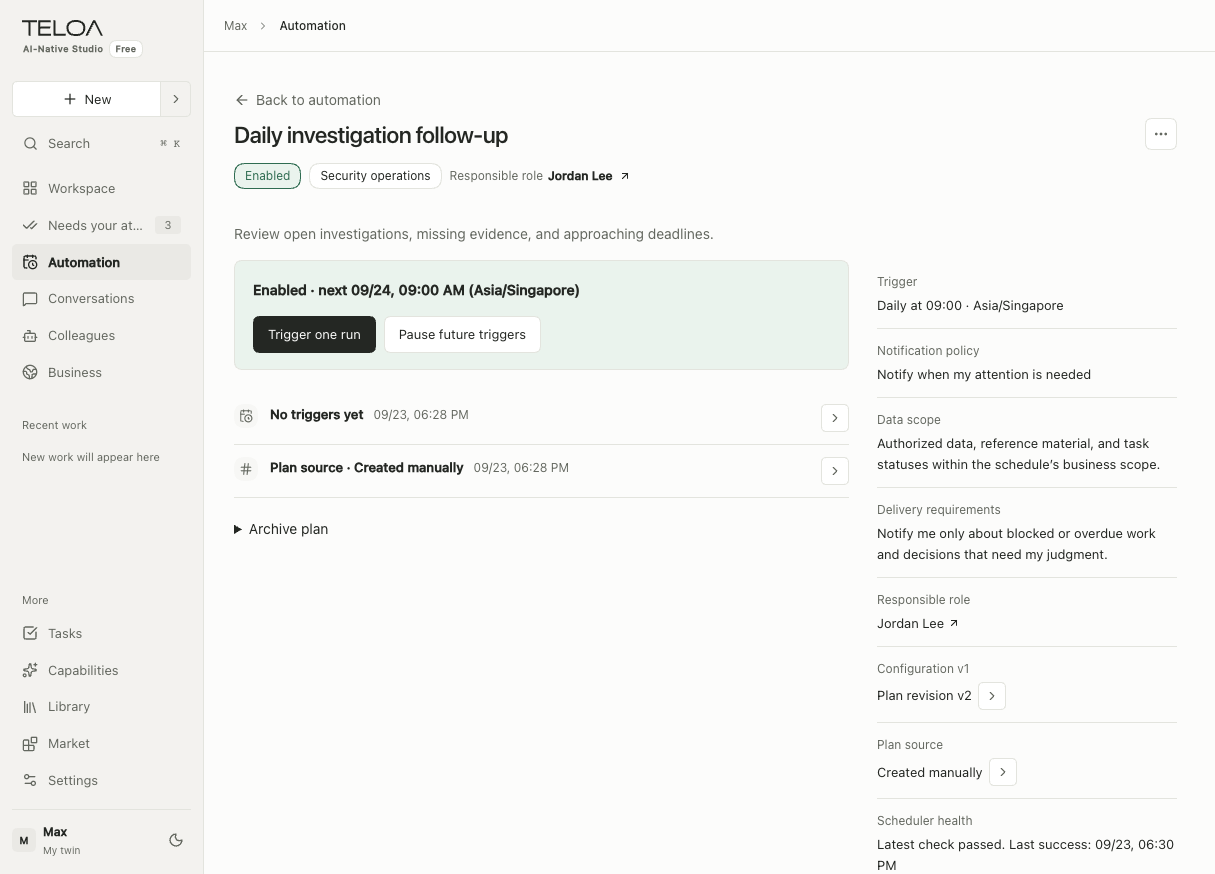
English interface with sample data. Review the enabled status and next-trigger message. The right panel shows a daily schedule at 09:00 in Asia/Singapore. The buttons below the status trigger one run or pause future triggers.
Try one run first
If the details page offers an immediate run, trigger it manually and inspect the run record and output. Verify the data sources and permissions it uses before enabling scheduled runs.
Follow up and pause
Review run history in the details page, distinguishing the schedule's status from the status of an individual run. Pausing controls future scheduling. It does not mean all work already started has ended; check ongoing work in its task records.
If it did not run on time
| What to check | Why it matters |
|---|---|
| Local service availability | Work cannot run while the computer is asleep or shut down, or after the service exits |
| Schedule enabled state and time zone | Your local time may differ from the schedule's time zone |
| Colleague status and configuration | A paused colleague or invalid configuration may prevent the work from starting |
| Data sources and tool permissions | Expired connections, unavailable materials, or withdrawn permissions can affect execution |
| Recent run records | The schedule may have triggered, but the run failed or is waiting for you |
Catch-up behavior after the service returns depends on the scheduler and its records. There is no guarantee that every missed run will be made up. Check history before running work manually to avoid duplicate external effects.