
1.2 Install Teloa with Docker
Use Docker Compose to run Teloa and PostgreSQL on your own device, with data stored in persistent volumes. You do not need to install Node.js, pnpm, or OrbStack on the host.
Before you begin
- Install and start Docker Desktop or Docker Engine with the Compose plugin.
- Obtain the Teloa source code and open the directory containing
compose.yaml. The current setup builds from source; do not assume an official image name. - Make sure the device can download images and software dependencies. Bring your own model service and API key.
Follow the release information on the official website to obtain the source. If you do not have it yet, use the contact channel on the website to check how to access the preview.
docker info
docker compose version
The first command should return details of the running engine; the second should show the Compose version. Use a maintained Docker release that supports health checks and dependency conditions for initialization services.
Start Teloa
Run this command from the source root:
docker compose up -d --buildOn the first start, Docker builds the image, generates a database password, initializes the database, and starts Teloa. The password is stored in a separate volume; you do not need to enter a demo password.
Check the status
docker compose psWait until db and app are healthy. init is a one-time initialization service, so a successful exit is expected. If a service keeps restarting, check the error first. Do not delete the data volumes.
The default local Web port is 3100. The database port is not published to the host. If another service already uses that port, add TELOA_PORT=3101 to .env in this directory, then start Teloa. Do not stop unrelated services.
Open the authentication link
docker compose logs --tail=50 appIn your own terminal, find the full authentication link printed during this startup. If you changed the port, replace the port in the link with your configured host port, preserving all authentication parameters.
Use the new link after a restart. The authentication link is not a model API key. Do not paste logs containing authentication parameters into public issues.
Start working
On your first visit, Teloa may prompt you to add an API key. Configure it there, or choose to set it up later and open Settings → Models. Follow the model guide to verify a response. A working page and a working model are two separate checks.
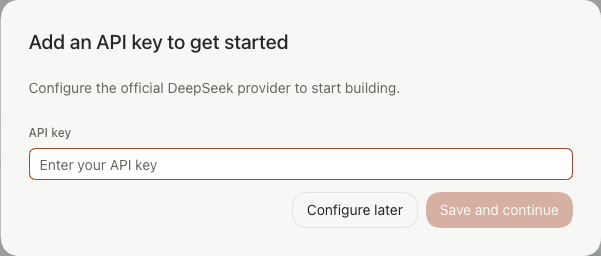
English interface before credential setup. This field needs your model provider’s API key, not the local authentication link from the previous step.
Next, complete your first task or build your first team. The initial environment may be empty; you do not need to import demo data first.
Stop and resume
docker compose stop
docker compose start
Your data stays in the persistent volumes. Local tasks and automations cannot continue while your computer is asleep or shut down, or while Docker is closed. Back up before upgrading. To change the source, see Local development.