
3.7 Business areas and boards
A business area brings related work and resources together, such as content operations, market research, or security operations. General work is for work without a dedicated business area.
SOC alert triage illustrates business setup, task assignment and returned results. See Industry scenarios and business composition for enterprise services, content operations, retail, software development, education, local services and other security disciplines. The other cases are scenario designs, not claims that their workflows are implemented or packages published.
Create a business area
On the Business page, choose New business. Describe the records, fields and pages you need in ordinary language in the builder conversation, for example: “Set up security operations to track alerts and investigation findings, with an alert-trend dashboard.” Review the draft pages, choose Save business, then open it from Business. Use Adjust business for later changes. Saving does not connect a source or start recurring sync.
You can create a business area locally without first importing a Marketplace resource package. Empty record lists and dashboards are normal until data is added.
What a business area contains
| Category | Purpose |
|---|---|
| AI employees | Carry out lasting responsibilities |
| Skills | Provide reusable methods |
| Reference materials | Supply factual material for tasks |
| Connections | Connect data and tools |
| Business boards | Track records and their status |
| Task templates | Reuse task requirements |
| Apps | Provide supported app capabilities |
The Business and Apps pages show the status of related resources. Follow each status to the relevant configuration page. A resource count alone does not show that the resources are ready to run.
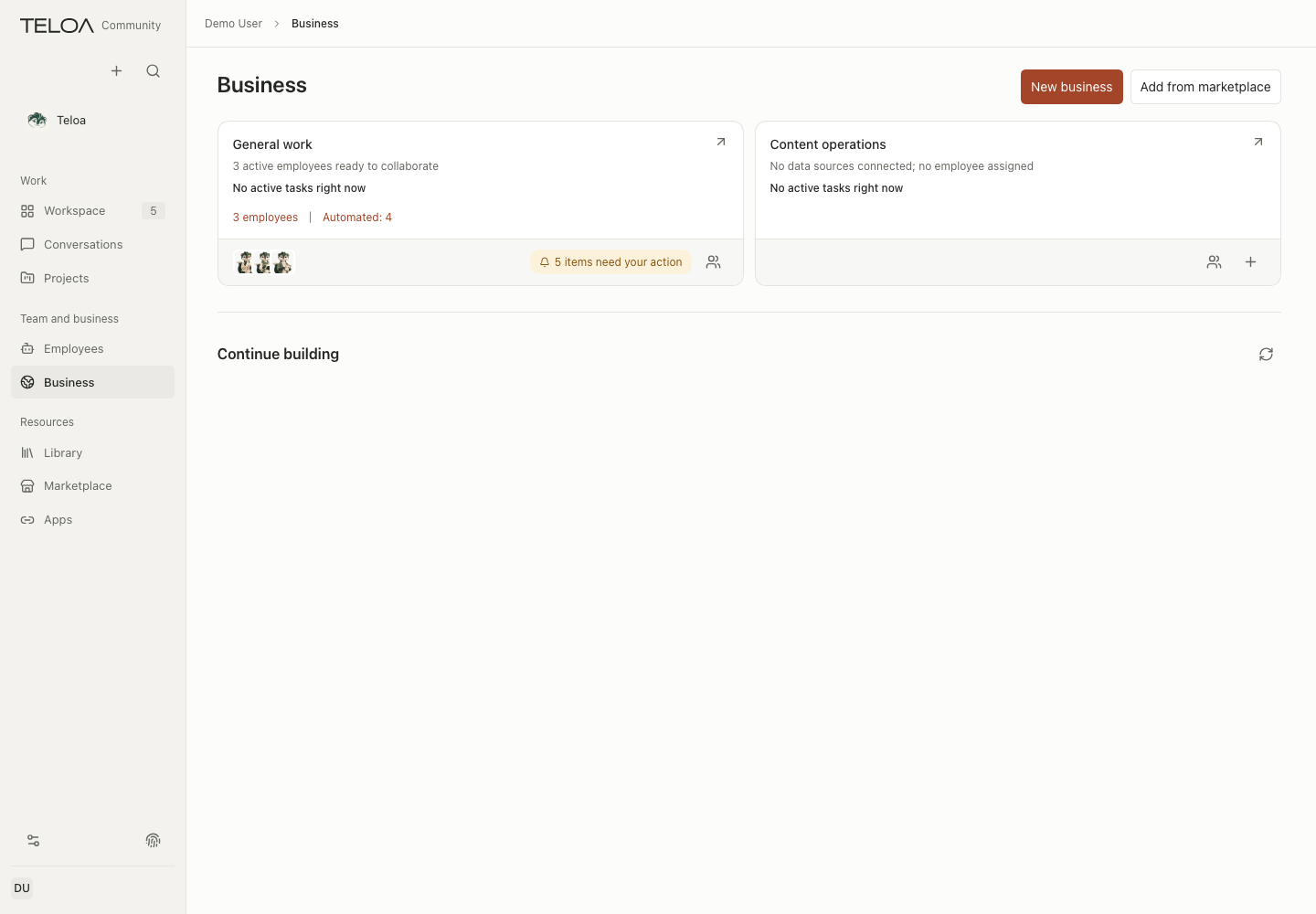
0.2.2 interface with sample data. Each business card lists active employees, tasks in progress and a resource summary, and flags data sources that are not connected yet. Select a business name to open it.
From records to accepted results
- Connect or import data. External data sources (such as alerts) on the business page shows the local connection state. For a managed read-only connection, use Connection directory to connect it, then Adjust business to describe the source and fields, preview a test read, and confirm the mapping yourself. A connected tool does not mean this business has data. After confirming the mapping, use Data sync > Sync now. Recurring sync starts paused and needs your explicit enablement for each rule. Alternatively, use Add record on a record page or Import a table for CSV/XLSX. For XLSX, choose a worksheet, review the column mapping and every row in the preview, then confirm the import.
- Check the record. Open the business record page and a specific record to check its source, fields and status. Synced records are marked Synced data · Read only; correct external facts at their source. Locally created records can be edited when your page permissions allow it.
- Prepare employees. Under Employees and capabilities, check the responsible employee, skills, materials and connection status. Configure duties, employee skills and material access as needed. A responsible employee is optional, and saving one does not assign work. Check the employee and permissions again when you delegate.
- Approve the assignment. In the record details, choose Delegate this record. In the conversation that opens, state the goal, evidence and expected result. Check the native confirmation card and approve it yourself before real work is created. Saving a business or opening a record does not start work.
- Track and accept. Related tasks in the record and Business task progress on the business page show the actual status. If work has ended but shows Awaiting your review, open the task and check the facts and result. After you accept it, View result opens the exact accepted version.
- Summarize in a dashboard. For defined record fields, ask for a dashboard in a conversation, preview its queries and widgets, and confirm each one before use. A dashboard does not turn unreviewed investigation findings into response actions.
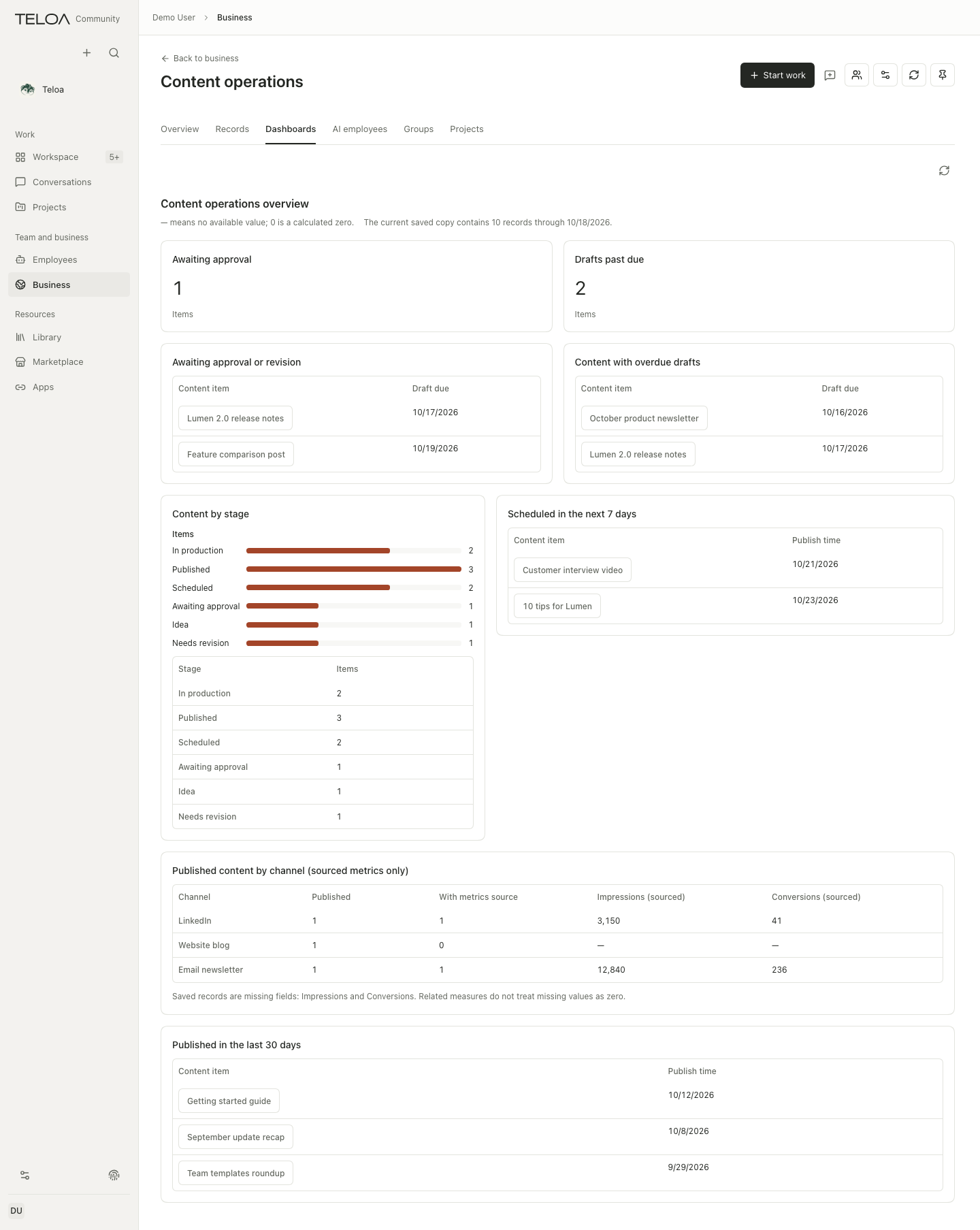
0.2.2 interface. The dashboard was adopted from the Marketplace entry Digital marketing & content operations dashboard and shows 10 sample content records entered by hand; this is not real business data.
Use a board
Business boards depend on defined record types and data. Open a record, check its source and current status, then start the relevant work. If the business definition does not include a record type, do not expect the system to generate fields that fit every industry.
A board record is neither a group message nor a task. Use the linking options in the interface to maintain these relationships. Changing a status does not mean the corresponding business action has been completed.
Build a dashboard in a conversation
A dashboard turns the data in a business area into number cards, charts and lists that refresh on a schedule.
- In the workbench or a conversation, select the business area and say what you want to see, for example "make me an alert trend dashboard". The AI first reads the record types and fields defined in that business area, trial-runs its queries within the read-only limits, and then saves each widget and the dashboard as separate drafts. Every save asks for your confirmation, and a saved draft does not take effect.
- On the business page, open More > Dashboards > Drafts awaiting confirmation and choose "Review changes" for each draft. The preview calculates the draft once: a widget shows its trial result; if the SQL breaks the rules, the specific reason from the server is shown (for example that the function pg_sleep is not allowed) and "Apply changes" is disabled.
- Confirm the widgets first and the dashboard last; a dashboard cannot be confirmed while any widget it uses is not in effect. Once confirmed, the dashboard appears in the list and refreshes on its set schedule. The top of the page shows "Updated" and the next update time; use "Refresh now" when needed.
- On the dashboard page, choose "Pin this dashboard". The sidebar then shows "Business · Dashboard", which opens it directly.
Notes:
- A dashboard reads only your own synced copies of business records in that business area. Queries can reference only defined record types and fields, and cannot read other business areas, other people's data or database system tables.
- Each query may run for at most 5 seconds, return at most 10,000 rows, and each row must be under 1 MB. When a limit is exceeded, that widget shows the reason and the other widgets still display.
- The dashboard page shows the results of the last calculation; opening the page does not recalculate it.
now()is the refresh time. - For a source-mapping draft that reads a managed MCP tool, the preview does not call the tool automatically; choose "Test fetch" in the preview.
- In this release a dashboard is visible only to you.
Follow a delivery goal
Choose Project within a business area to create a project and link existing work. See Track delivery with projects for progress, archiving, and recovery.