
3.1 Workspace and Needs your attention
Workspace has four tabs: Overview, Needs your attention, Tasks, and Automation. Overview is where you describe a goal and return to current work. Needs your attention brings together items waiting for your decision or action. Read what is blocking an item before choosing the next step.
Start from one input
Describe a goal or ask a question directly in the Overview input. Home and existing conversations share the same input component, including files, images, @ references, / commands, model selection, and voice input when available. After the first submission, continue the conversation in place without inserting the request a second time.
The lead assistant answers ordinary questions directly. When an employee should own a deliverable, state the goal and preferred employee. Once accepted, the actual task and execution progress appear. Its card can open the original task, check status, stop, or continue the original delegation. Paused employees and missing permissions or configuration produce a visible reason instead of silently choosing someone else.
“Summarize today's work” reads existing work records. “Ask every employee for a fresh update” starts new work for employees in the selected business area. Say “all businesses” explicitly for a cross-business request. Alert queries require a configured real alert source; task counts do not represent alert totals.
If the submission result is uncertain, reconcile the original submission or delegation first. Pending verification does not automatically resend it. Continuing a delegation retains the same task. Native capabilities determine whether temporary attachments survive a refresh; reattach them when prompted.
Add materials and skills to this work
Choose the business this work belongs to in the composer's Business control. Name an employee in your message when you want to delegate; ordinary chat continues with the current assistant. Call a skill with / and reference materials with @: type / or @ in the composer, then search and choose from the list. Selections enter the current conversation draft; review them and send directly.
Referencing materials or calling a skill does not change an employee's lasting permissions. Manage materials day to day on the Library page, and add skills and apps on the Apps page.
Formal delegation to employees currently supports text and authorized Teloa resource references. Delegation containing uploaded images, files, or other structured attachments reports that transfer is unsupported and keeps the original message; it never sends just a filename. The current lead conversation still reads images and files through native capabilities. Its model selection does not overwrite employees' run configurations.
Continue work from Workspace
- Open Overview and review the Continue working list of unfinished tasks and recent conversations (newest first, up to 5 items).
- Open the relevant task or conversation and read its latest progress and results.
- For a complete list, select All N items at the upper right to open the Tasks tab, or find conversations on the Conversations page. Recent records are not the full history.
Removing an item from Recent work in the left navigation only changes the shortcut list. It does not delete the original conversation. Find the original in the conversation directory.
Handle items in Needs your attention
On the Needs your attention tab, the tags above the list filter by type: Approval, More material, Connection required, Error, Review, Handoff, Assignment, and Ready to run. The page shows only the types that currently exist. Select an item to check its source, basis, next step, and (for external actions) risk in the drawer on the right, and to view its evidence. The arrow at the end of the row opens the original task or object. If the page asks for a reason, explain this decision before submitting it. Closing the drawer does not submit a decision.
After submitting, use the status returned by the server. If the network fails or a response is pending, do not repeatedly click conflicting decisions. Reopen the same item and check its state.
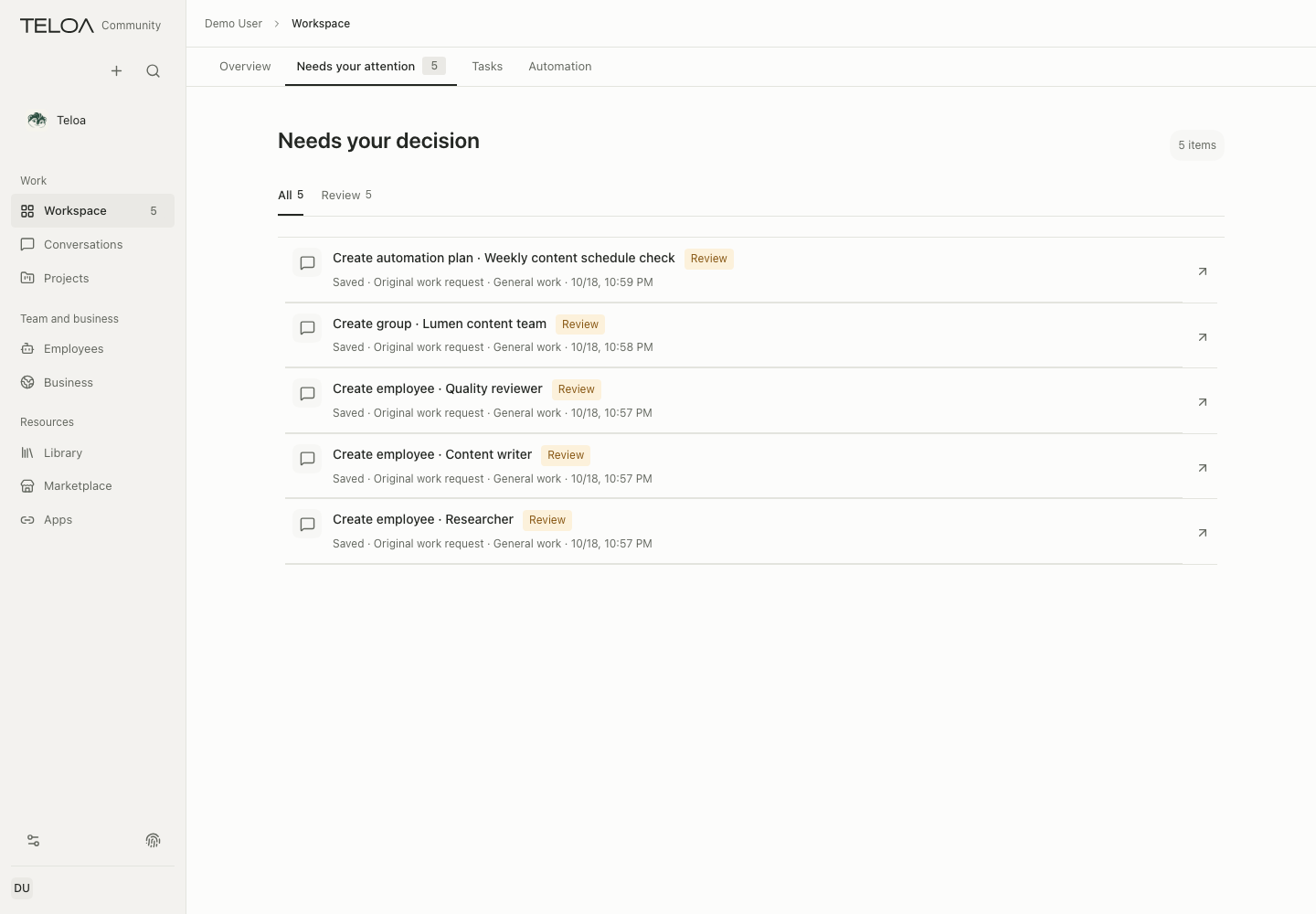
0.2.2 interface with sample data. The tabs at the top are Overview, Needs your attention, Tasks and Automation. The sample lists initial setup decisions and items that need preparation. Open each item to check its source and next step.
Permissions do not expand automatically
Approving a specific action does not permanently authorize the entire tool set. Change ongoing employee permissions in the employee's configuration. See authorization boundaries.