
3.5 Tasks and task templates
A task records the goal, owner, inputs, and deliverables for a piece of work. A template stores reusable requirements; it does not schedule execution.
Create a task
Select New task at the top right of Tasks (or New task in the + menu on the left). A new conversation opens with the current business area and a creation request already filled in. Add the goal, input materials, and deliverables in one message (Markdown works) and send it. The assistant asks only when information needed to create or run it is missing; the current assistant can own the task, and it asks about an employee only when one is really needed. The task is saved without starting.
To fill it in yourself, use Create with a form (“Assign a piece of work”): the business area and you as owner are filled in, so you only write the Work goal, and the name is drafted from it. Primary scope, skills, and the collaboration group are under More options. In a collaboration group, New group task in the group header creates a task linked to that group. Either way, saving or handing off a task does not start execution.
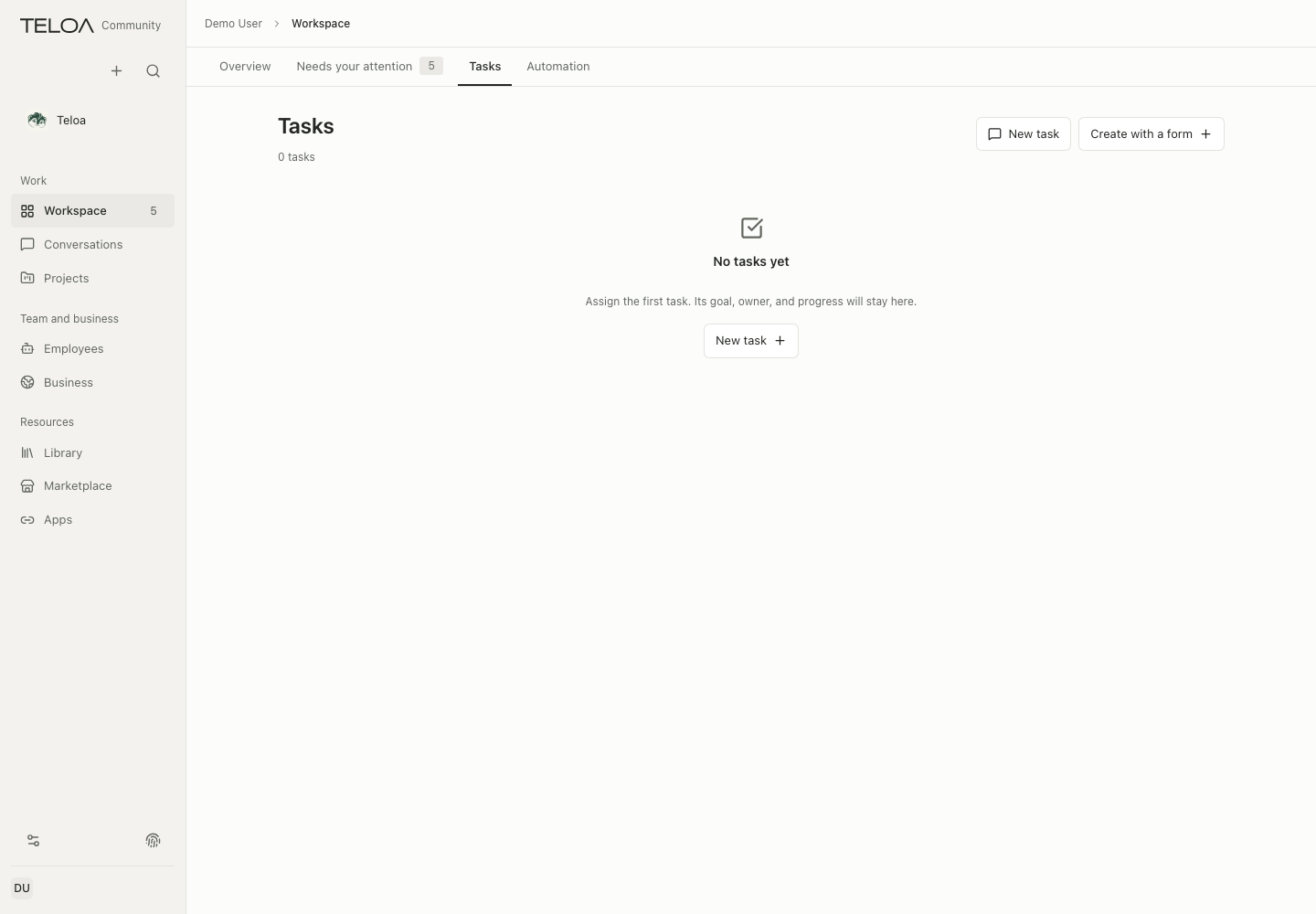
0.2.2 interface with sample data. The sample has no tasks yet. New task creates work from one message in a conversation; Create with a form opens a short form for the work goal.
Goal: identify three changes this week from the attachments.
Output: four columns—change, source, impact, and open questions.
Boundary: read only the provided materials. Do not access other sources or send the results.
After creating the task, check its actual definition on the details page, then follow execution. Use the task name to make it easy to find; put the full requirements in the body.
Read execution records
After selecting a task, check its owner, business area, source, and current progress at the top. Deliverables appear before the activity history, with links to saved versions. Expand materials and linked conversations, or execution settings and task information, as needed. Internal identifiers and creation times stay in task information.
An action that needs your attention opens the relevant approval, handoff, or execution controls. Collapsing details preserves unsent management forms. Wide screens support a directory and detail view together, with an expanded reading view; narrow screens show one at a time.
A task may have several runs. Check the time, status, inputs, and result of the specific run so you do not mistake an earlier result for the current deliverable. If it fails, first identify whether the error occurred during preparation, a model call, or tool execution.
Stop and continue
Clicking stop sends a request. Wait for the status to settle, then confirm whether execution has ended. If the status is still changing, check the records. Do not immediately delete materials or shut down the database.
For work that can continue, use the recovery option provided in the interface. Not every failure can resume from the same step without losing progress. Before rerunning work, check whether the earlier run had external effects to avoid repeating an action.
Save a task as a template
Use the relevant save-as-template option to capture stable input requirements, steps, and output formats. Do not save this task's confidential materials or your personal keys, passwords or sign-in tokens in a general template. Task templates come with business packs from the marketplace, or you can create them inside a business. Using a template creates a new task; scheduled work needs a separate automation.
To finish, check that the template is easy to find, its input requirements are clear, and a new task does not unexpectedly inherit sensitive content from the old one.