
1.7 Create your first work group
Use an internal product brief to complete the workflow: humans set goals and boundaries; the AI team carries out the work. Lumen is a fictional example. You decide whether to adopt or publish the result, while employees draft and review it.
1. Hire three employees
| Employee | Responsibility | Deliverable |
|---|---|---|
| Researcher | Verify the supplied product material and organize usable facts | Fact summary, sources, and open questions |
| Content writer | Draft an internal brief from verified material | Short introduction, supporting references, and limitations |
| Quality reviewer | Check the draft against the original material | Discrepancies, evidence, and suggested corrections |
On the Employees page, choose Add AI employee. In the right drawer, use a Markdown description to explain the responsibilities, reference material, and execution boundaries. For example: “Create a Researcher who verifies the product material I provide, cites sources, and identifies open questions. Read only; do not browse, change live systems, or send anything externally.”
Choose Continue to bring the description into a conversation. Review the proposed name, responsibilities, and business scope, then confirm to create the employee. Creating an employee does not automatically install apps, grant tool permissions, or start work. Create the other two employees in the same way.
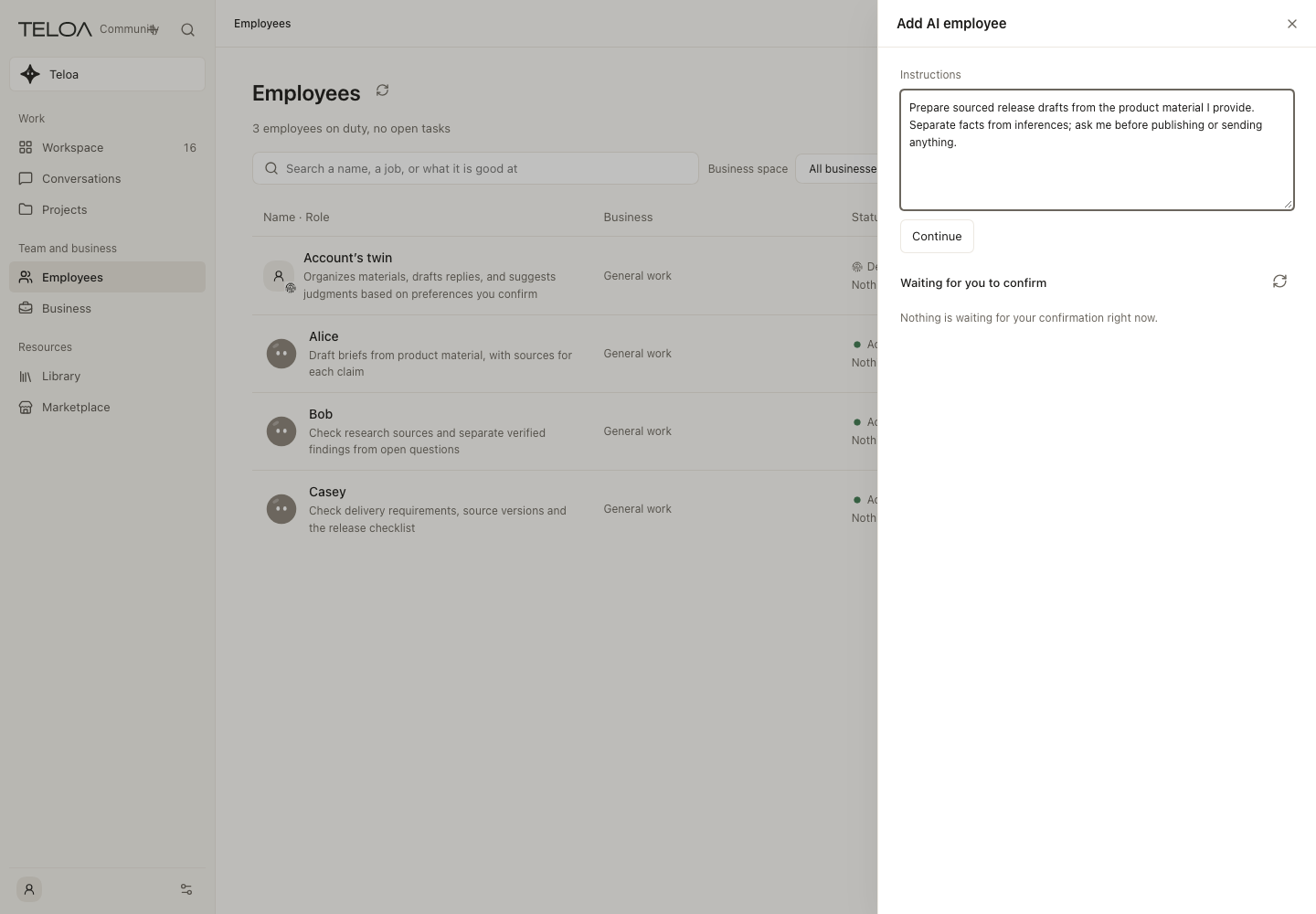
0.2.4 actual interface with example data. Describe responsibilities, sources and boundaries in Markdown. The shown draft has not been continued or submitted.
2. Configure facts and methods
Prepare product material with the audience, release date, confirmed features, and facts that must not be invented. Send the material in a conversation, then send a separate request to save it as knowledge. Review before saving. See Knowledge and resources.
Associate the material with all three employees. Add or install a review Skill in Apps, then select it for the Quality reviewer. If you generate a Skill from a description, inspect its readable draft before saving and installing it. Saving, installation, and selecting it for an employee are separate steps.
Knowledge provides facts; Skills provide methods. Each run fixes the selected versions, content, and sources. Tools, web access, and business systems still require their own authorization. Naming an employee “expert” does not change its permissions.
3. Create a group and delegate
On the Conversations page, select the plus button and choose Create collaboration group. In the first step, name it “Lumen Content Team,” add a description, select a business area, and choose Next. In the second step, select the Researcher, Content writer, and Quality reviewer and create the group. Use Add members in the group's Members panel to invite more employees later.
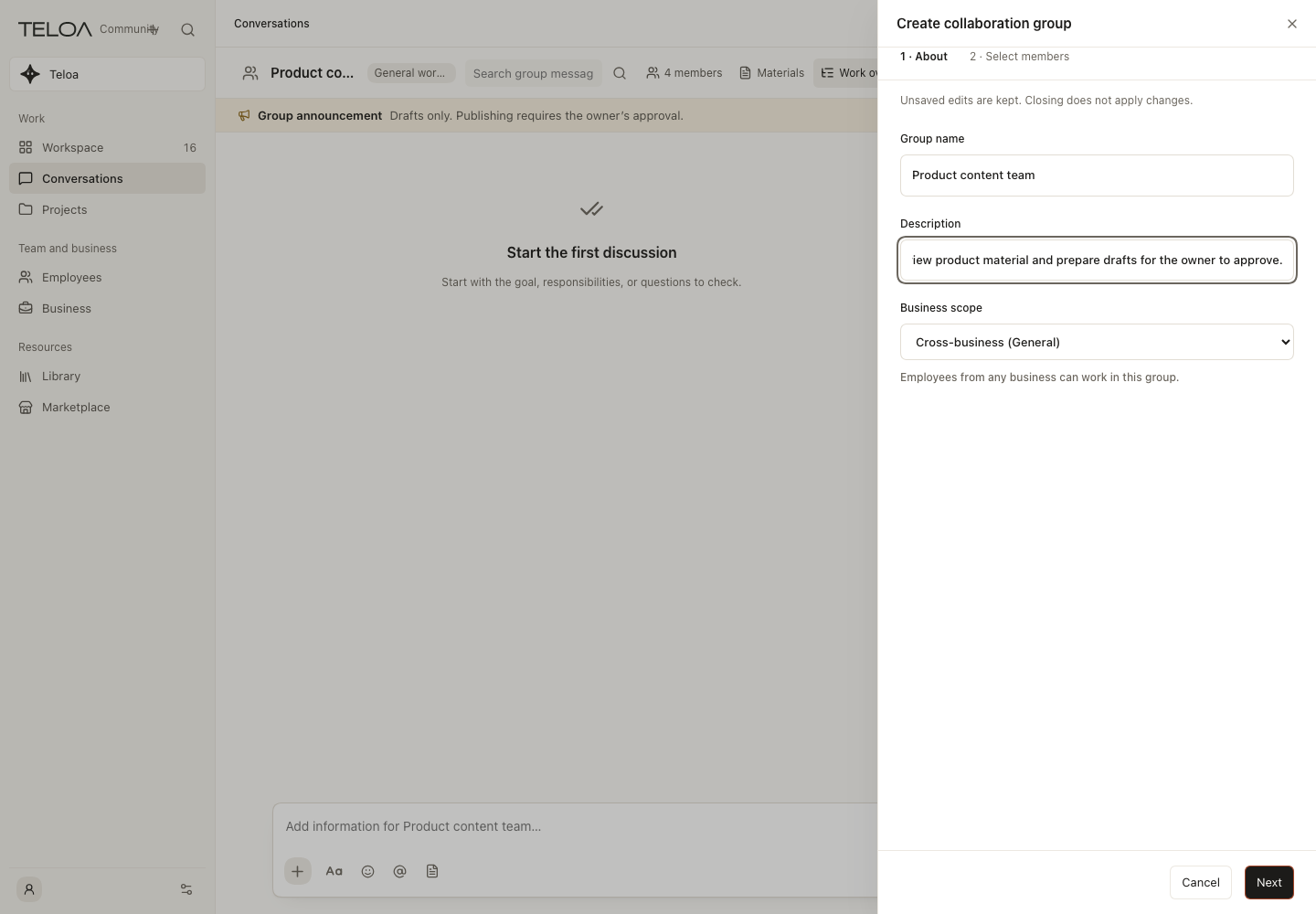
0.2.4 actual interface with example data. The first group-creation step: name, description and business scope. The group has not been created.
Type @ in the message box, choose the Content writer, and provide the goal and boundaries:
@Content writer Use the linked Lumen launch brief to write a short internal introduction.
Include sources and open questions. Do not browse or publish. Reply in this group.
When group routing is enabled and the employee's authorization is valid, the employee's avatar and status (such as “Replying…” or “In progress”) appear above the message box, the employee starts a managed run, and the result comes back to the group. For a message in the main stream, the reply appears directly in the main stream with a Reply excerpt of the original message. Expand Group replies under Workspace > Tasks to follow execution. If a notice such as “No employee can respond” or “Needs your approval” appears under your message, resolve it first.
After reading the draft, mention the Quality reviewer and include the content to check. Use explicit handoffs at first: the Researcher verifies the material, the Content writer drafts from it, you check direction, and the Quality reviewer checks the draft. Ordinary discussion does not guarantee a multi-person dependency graph or formal business task. Choose More message actions > Create task on a group message when the work needs its own goal and delivery status.
4. Review and complete the work
Open the item from the Tasks or Needs your attention tab of Workspace. Check the owner, execution history, and original sources. An ended run means the model has stopped; it does not mean you have accepted its work.
Choose Review result. If nothing is saved yet, select View deliverables, choose this run, use Add message to pick the reply to deliver, and save it. Then select Load outputs, choose the deliverable version, optionally select Review output, add a closing note, and select Complete task. A model answer, a saved deliverable, and a completed task are different states.
For tool actions that require approval, review their parameters, targets, and evidence in Needs you before deciding. Group discussion and active employee status do not replace approval.
5. Automate repeat work
In Automations, create a schedule with the Content writer, the business area, goal, time, time zone, and notification policy. Enable it after review, or run it manually once first. Check the resulting task, execution history, and next scheduled time.
Keep the local service running. Pause a test schedule after acceptance to prevent further runs. Pausing preserves existing tasks and history.
6. Reuse work experience
Open Settings > Auto Dream to see daily summary schedules and recent runs. Reusable experience is saved automatically; it does not need approval for every entry. In the employee's details, open … (More employee actions) > What it remembers to inspect content, sources, and status, or withdraw an entry.
Delegate another task to the Content writer in the same business area and inspect its memory context. Only active memories with valid sources and matching scope enter later tasks. Saving a memory does not make it available to every employee. See Auto Dream.
Completion criteria
You can find the owner, progress, original evidence, pending decisions, and saved deliverables. Later work can reuse the configuration and eligible experience.
Lasting AI employees, work groups, and temporary task teams are distinct. An employee or an ordinary conversation's lead assistant can organize an authorized task team for further delegation. Temporary assistants do not become lasting employees or gain broader permissions. See AI employees and task teams and native capability status.