
3.2 Manage conversations
Use conversations to ask questions, add background, and follow up on results. When you talk to an employee, the business context affects the materials and permissions it can use.
Start a conversation
Send directly from Workspace or start a general discussion from Conversations; both share the same input and draft. You can also choose an employee on the Employees page. An employee that supports several business areas may first ask you to choose one. Select the scope relevant to this work.
Explain the goal and materials before specifying the output format. For example:
Based on the description I provide, list three confirmed capabilities and three open questions.
Include evidence from the source for each item. If none is available, write “Not provided in the materials.”
Choose materials and skills for this conversation
Open Knowledge and capabilities beside the input. Hover over Knowledge, Skills, or Connections to open the adjacent list. Search and select materials or skills, then choose Use in this conversation. Selections enter the current conversation draft; add your request and send directly. If the draft has changed or a reference is unavailable, resolve the prompt first. Connections show available tools; this menu cannot enable tools or bypass authorization.
The list reflects the current conversation. Use Manage capabilities or Open library for ongoing management. Selecting an item prepares a reference; after sending, check the actual references and tool records to see what was used.
Reference files and images
Use @ in the input to select a file, directory, or conversation. Paste or drag images into the input, select a model that supports image input, and review the attachment preview before sending.
PNG, JPEG, WebP, and GIF are supported. Images may be compressed or resized for model input; GIFs are processed as static frames. If you need the complete content, reference the original file and specify what to inspect. Temporary attachments are not automatically saved to the knowledge library.
Voice and calls
Configure voice in Settings > Voice service.
- Speech output: choose MiniMax, OpenAI, or ElevenLabs, each with your own API key entered under Model, credential and custom voice. Keys stay on the device running Teloa. For MiniMax, pick a Mandarin or English voice in Voices, select Preview, then Use voice; previewing does not change your current voice. For OpenAI or ElevenLabs, enter a model and voice ID, save, then select Test and preview.
- Speech recognition: MiniMax cloud (default, uses your MiniMax API key) or SenseVoice local (reuses the local voice input model, no key needed).
- Calls: select Voice in an employee's details, or Voice call on the Squirrel assistant. Both recognition and speech output must be configured, and you need to allow microphone access the first time. The call bar floats and can be dragged; use Mute, Interrupt, or End call. Closing details does not end the call, and ending it does not stop work already running in the original conversation. What you say enters the original conversation with its existing permissions.
- Voice messages: select Voice message on the Squirrel assistant to record up to 15 seconds. The transcript goes into the original conversation's draft for you to review and send. End any active call first.
Speech output with OpenAI or ElevenLabs needs your own account keys and has not been verified with real accounts in this release.
Organize a task team in a conversation
An ordinary conversation's lead assistant can start a task team for the current task. An AI employee can also organize its own task team. State what each part should resolve, which materials are available, and the final delivery requirements. The lead assistant or employee consolidates the results. Temporary delegation does not require hiring another employee or creating a work group first.
Task assistants are temporary members of this task. They do not automatically become employees or gain permissions through delegation. Ordinary conversations retain their session permissions; business tasks remain constrained by the employee and current task's authorization. See the native capability guide for usage and availability in the current release.
Continue, find, and archive conversations
Find an existing conversation in the directory and add follow-up questions to retain its context. The directory has Chats / Employees / Groups: regular conversations are under Chats, one-to-one chats with AI employees or your twin are under Employees, and collaboration groups are under Groups. Use New folder, drag, or … > Move to folder to organize them; folders only change your own view. Recent work is a shortcut; removing a conversation from it does not remove the conversation from the directory.
Use search to find conversations or content. Select … beside a direct conversation and choose an action:
- Rename: edit the name and save, or press Enter to submit. The conversation content stays the same.
- Create conversation copy: start an independent conversation from completed content, excluding unfinished replies. After creation, select Open copy. Copy history is collapsed by default and expands automatically when an earlier creation result is uncertain. Check the original copy before creating another.
- Archive conversation: confirm to hide it from the conversation list and home while keeping its history. A running conversation can be archived after it finishes. To restore one, open Filter and manage conversations, switch the state to Archived, and select Restore conversation.
Use arrow keys in the menu. Close a dialog with Escape, Cancel, or a click outside it. While an operation is in progress, closing and duplicate submission are temporarily disabled. If it fails, the original input remains available for retry.
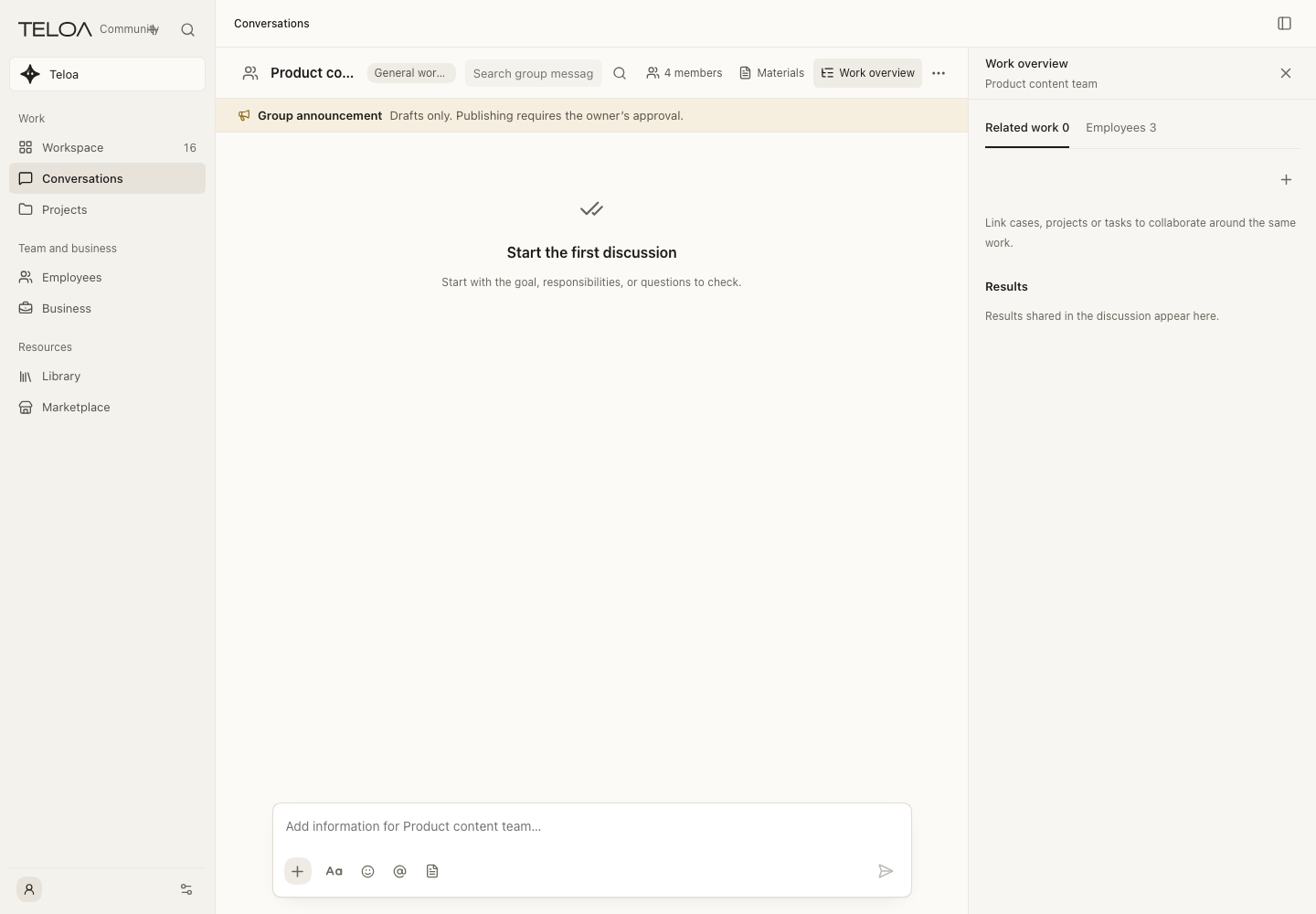
0.2.4 actual interface with example data. An example group before its first discussion, with its work overview. Membership and related work come from actual records.
View and save conversation results
Select Work overview at the top of a conversation to see progress, running work, and work results; select one to preview it, or download it with the button beside it. While previewing a file, select Save work results to keep that version on this machine; it is not shared. Reopen it later from Conversation options (…) > Work results. In Versions and feedback, select a paragraph to leave feedback or revise it as a new version; for your own general work, Revise with AI creates a new version after you approve it in the original conversation. Earlier versions are kept, and you can export Markdown. Turn the work into a task when it needs an owner, status, and a completion record.
Turn a discussion into a task
When work needs a named owner, execution status, and deliverables, explicitly delegate to an employee in your lead conversation or formally assign it through Tasks. Check the actual task card and execution state after acceptance, and assess whether the returned result meets your requirements. A chat reply alone does not prove that an independent task has started. See the Workbench guide for current attachment-delegation limits.
Model responses can contain errors. For prices, external state, and actions that need to be performed, check the sources or actual execution records. Do not rely on response text alone to conclude that a tool succeeded.