
3.11 Use native execution capabilities
Teloa 0.2.4 (Community edition) uses DSH 0.2.1-rc.2. Before upgrading an existing installation, read Upgrade and rollback.
DSH owns sessions, tool execution and extension lifecycles. Teloa retains business ownership, employee permissions, approvals and delivery acceptance. Enabling an extension does not authorize every employee to use it.
Choose an execution engine for a task
DSH runs the main conversation. Independent work can be delegated to a configured Codex or Claude Code / Claude Agent provider. For example: “Use Codex to review this code,” “Have Claude Agent analyze these files,” or “Choose an appropriate engine automatically.” A task-specific choice does not change permanent preferences or the chat model.
Check the provider under Settings > Connections and runtime, then prepare the authentication it requires. Resolve a specific missing prerequisite while preserving the task. External engines use their native permissions and require the owner's consent for every launch. Teloa file scopes and per-tool approvals are not automatically passed through: review the working directory and permissions before consenting. Results return to the original work; acceptance of a launch does not mean completion.
Multiple sessions and task teams
Continue an existing session from Conversations, or start a conversation from an employee's page. The main session and child sessions opened during work can remain available together. Check the session and business context before opening files, inspecting tool activity, or sending a message.
The current composition enables task teams. Either an ordinary conversation's lead assistant or an AI employee can start one for the current task; a work group is not required. State each task assistant's goal, dependencies, and final reporting requirements, then inspect members and work records in the conversation's task team interface.
AI employees hold lasting identities, with skills, employee memories, knowledge, and permissions managed on the Employees page. Work groups are where you collaborate with employees on business work. Task assistants are temporary members of the current task: they do not automatically become employees or gain additional business permissions. Ordinary conversations retain their session permissions; delegation within managed tasks stays within the current authorization and quota.
For example, Alice owns content and Bob owns data analysis in a marketing work group. They can organize separate task teams, then each summarize results back to the group. Messages between members are not human approvals, and a member finishing does not mean the whole task has been delivered. Older child sessions retain their reading and recovery paths without being relabelled as task team members. See AI employees, work groups, and task teams for more context.
Choose a run mode and execution method
The composer of a new session shows the current mode. The default is Standard mode, and you can choose another mode for that session. Once the session starts, its mode is fixed and shown beside the session title. Under Settings > Agent presets, you can choose Set as new task default for a mode. PTC mode and Minimal mode appear only after you turn on Developer tools in Settings > General settings. An employee can have a specific work mode set in its configuration; Creator mode is limited to your own sessions and cannot be used for employees.
| Mode | Intended use |
|---|---|
| Standard mode | The default. Analyze information, use tools, and deliver work results; suitable for most tasks |
| PTC mode | Includes Standard mode capabilities and combines tool calls through run_code; suited to processing results in batches and filtering, organizing, deduplicating, counting or summarizing them |
| Minimal mode | Uses only a terminal and image reading; useful for testing and comparing baseline performance |
| Creator mode | Customize DSH through conversation: write plugins that add features or UI, or combine tools and prompts into your own mode; limited to your own sessions |
If your default is Creator mode, employees without a fixed mode use Standard mode. Group message routing always uses Standard mode, so a personal mode change does not change the group's business identity.
The three execution methods serve different needs:
- Workflow: coordinate steps. For example, analyze two documents in parallel, then compare and summarize them. It supports official foreground and background execution. Background work in managed tasks retains task ownership and cancellation controls.
- PTC: call tools through code. Programs combine available tools; each inner tool call still checks the employee's tool and argument permissions.
- Ralph: iterate toward a fixed goal. Use it only when the owner explicitly requests Ralph or fresh-agent iteration. Each round starts a fresh task assistant with the goal and the previous round's structured handoff, without the parent's or previous round's conversation history. It currently runs in the foreground and does not replace scheduled automations.
To grant these capabilities to an employee, pause it, select the corresponding tools under Available permissions, save, then return it to work. An employee grant does not replace confirmation: each script or Ralph execution still needs owner approval. If the current permission mode cannot request human confirmation, switch to one that can.
Direct file or network access from a script does not pass through the employee allowlist for tool calls. Web-tool domain restrictions do not constrain the entire script's network access either. Review the full script's intended access before approving it; actual access depends on the execution environment and native sandbox.
Managed child work shares per-run count and depth limits with task teams. The current composition allows up to six Ralph rounds. Each Workflow, PTC or Ralph call starts its execution timer after approval and requests cancellation at ten minutes; a shorter timeout in the native execution engine may end it earlier. These are not exact token or spending budgets, and cancellation cleanup may exceed that time. Managed task assistants cannot use the owner's elevated access or borrow the responsible employee's memory-writing or group-posting identity. The employee consolidates results for business acceptance.
Stopping requests cancellation of associated child work and background jobs. Do not treat work as stopped until it has actually exited. A Teloa restart does not automatically resume Ralph or replay scripts. Successful execution does not establish an independent quality review. Developers can read Business capabilities and execution engines.
Preview files and review changes
- Click a filename under the turn's output files, or use the sidebar preview action on a native deliverable card.
- The right sidebar selects a Markdown, code, image, PDF, HTML, Office or spreadsheet viewer. Reload when it reports that the file changed.
- To review text edits, enable Settings > General > Developer tools. After a turn edits a file, select Review this turn's changes in the sidebar. Switch between split and unified views, or open the whole file.
Output files come from successful native file writes or edits. After generating a document through a command, ask the assistant to present the final deliverable; native present provides its card. Mentioning a filename in a reply does not establish that it was created or delivered.
Word and PowerPoint use the official Office-to-PDF service; Excel, CSV and TSV use the official spreadsheet viewer. Follow the preview's diagnostics if conversion dependencies or fonts are missing. Cards open the current file, not a preserved copy. Historical change reviews may become unavailable after a session is released or Teloa restarts. To keep a version of a file, preview it in Work overview and select Save work results; it is kept on this machine as a versioned work result. For deliverables that close a task, choose the version in the task.
Manage extensions
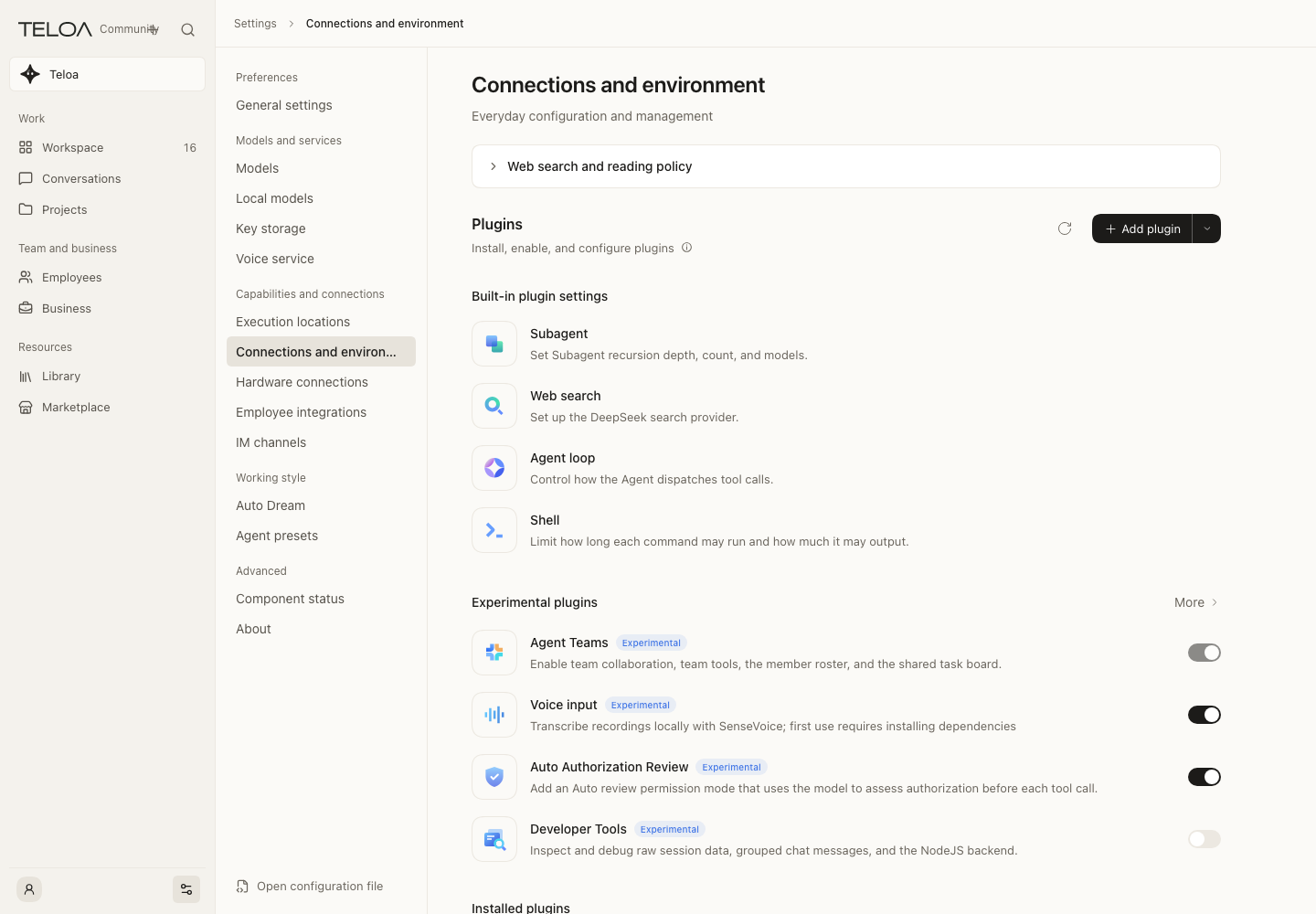
Under Settings > Connections and environment, review the native extension inventory and install, enable, disable, and configure extensions directly. For troubleshooting, use Settings > Component status.
- Check the description, source, version, components and diagnostics. Optional packages already listed do not need to be installed again.
- To add a new trusted extension, use the native installation page and read its dependency or build-script prompts.
- After installation, select Enable now, or enable it from the list. Complete the configuration in its details. If a restart is required, restart Teloa at a suitable time, then verify an actual invocation.
- Disabling keeps the installed files; uninstalling removes a removable package. Teloa's required components have protected activation and removal controls.
If an older Market installation has a pending record, first finish its review or handle the installation under Apps > App installation records. Native installation refuses new packages while these records remain. The corresponding package cannot bypass that review through native activation or removal. Market's catalog allowlist remains separate; see Capabilities and connections.
Background work
Open the execution record from a task, group assignment or automation. Native background work attached to a task belongs to that execution. An initial reply ending cannot count as delivery while its background work is unfinished.
After stopping work, wait for related activity to exit and check the final state. Official local background processes do not survive a Teloa restart. Treat interrupted work accordingly, inspect any effects already produced, and then decide whether to retry. Cancellation does not undo completed external actions.
Optional capabilities
| Capability | Getting started | Limits |
|---|---|---|
| Browser Use | Find @teloa/native-browser, explicitly enable the package and its Browser Use and Playwright components, configure installed Chromium as needed, then create a new session | Off by default. This lets an assistant operate a browser; it is separate from a webpage preview. Enabling it grants no employee permissions. Real actions and session isolation require validation in the target environment |
| Computer Use | Find @teloa/native-computer, enable the package and its Computer Use and Cua components, and first check the system permissions of the computer running Teloa | Off by default. Requires platform native components and screen/accessibility permissions. Sessions share the physical desktop; limit actions to the specified application |
| Local voice input | Enabled by default. The first time you choose the recording control in the conversation input, follow the prompts to prepare the local SenseVoice model and allow microphone access | Showing the control does not download anything or record. Preparation supports cancellation and retry, and cancelling keeps your draft. You can disable it in Settings; later launches keep your choice. Recognition fills the draft for you to review and send. It does not submit a message or make the conversation model local |
| Auto review | The official experimental extension is loaded on first launch; select it actively in an ordinary session's permission options when needed | Loading it does not change sessions' default permissions. It uses broader execution permissions and does not replace human approval. Auto review routes tool requests through the active native reviewer; explicitly selected official Full access adds no model review. Employee tool, argument and business permissions are still checked on every call |
Enabling the browser bundle adds Start > Browser to the right sidebar for manual Web browsing. It uses the official sandboxed iframe; open a site in the system browser when embedding is blocked. This pane does not share pages with the assistant's automation browser.
The assistant's Browser Use defaults to an isolated headless browser per active session. It creates tabs as needed without a browser PID and does not open a visible desktop browser window. Use it for ordinary Web tasks. Computer Use operates the physical desktop or an explicitly selected existing browser through a separate set of tools and host permissions.
Browser submissions and desktop clicks or typing are not confined by the file workspace boundary. Validate with a test page or window first. Read fresh state after stopping or cancelling. Installed, enabled, granted system permissions and actually usable are distinct states.
Stopping an ordinary conversation closes its browser pages through the official tool while preserving chat history and queued messages. Other conversations are unaffected. If closing is not authorized, a notice appears near the composer. If closing has started but times out or fails, further browser operations in that conversation are paused; ordinary chat remains available, or you can start a new conversation.
Managed tasks retain their existing cleanup checks. Stopping does not undo completed external actions.
When Auto review is disabled, the official extension may move sessions still using Auto to Full access. Check the permission mode before continuing an ordinary session. Managed execution rejects full-access states that cannot be verified as an explicit owner choice. Select the permission mode again before retrying.
SSH and Headless execution
Remote capabilities run only through the separate official SSH + Headless setup. @teloa/native-remote generates configuration; it is not a Web extension and does not make remote paths available to existing Web sessions.
An operator prepares an OpenSSH Host alias, verified SSH server keys, remote Node, a matching official helper and its checksum, plus a dedicated working directory. The generator only creates a new configuration directory: it does not connect, deploy or start remote services, and it refuses existing output directories. Follow the included package instructions to run official dsh --profile … --json; continuation uses the original session ID and the same working directory.
Official remote services enforce read-only or workspace-write boundaries. A disconnect can leave an outcome unconfirmed; external writes must not be replayed automatically. SSH, Headless and platform-dependent capabilities require their own real-environment acceptance. A visible Web entry or successfully generated configuration is insufficient evidence.
0.2.4 actual interface with example data.