
3.12 Add resources from Market
Use Market to discover and select resources. You can also create business areas, employees, and skills locally on their respective pages. New resources do not all have to come through Market.
Understand how resources work together
See the market's visual guide for team, employee and app relationships, with a security operations example.
- AI teams are team templates that organize several employees, skills, reference materials, connections and task templates for a business use case. Check each template for its actual contents. A template with a single employee is listed under AI employees.
- Dashboards provide a complete business configuration at a fixed version, including objects, views, widgets, dashboards and pages, and are listed under AI teams. A team template can reference one too. Adding it prepares a draft for you to preview and adopt personally.
- AI employees take on long-lived, defined responsibilities. They use skills, authorized materials and connected tools to carry out work.
- Models supply reasoning or specialist processing and are configured separately in Settings > Models. Adding a template does not silently switch models.
- Work groups support communication with your employees. An execution team coordinates temporary work on a task without creating new permanent employees.
Start with a team or an employee, or add individual apps or skills to an existing business area from Apps. After completing setup, describe a goal in a conversation or work group and follow acceptance, progress and results. Adding a template, preparing its resources and starting execution are separate stages: “added” does not mean a task has started.
Browse and import
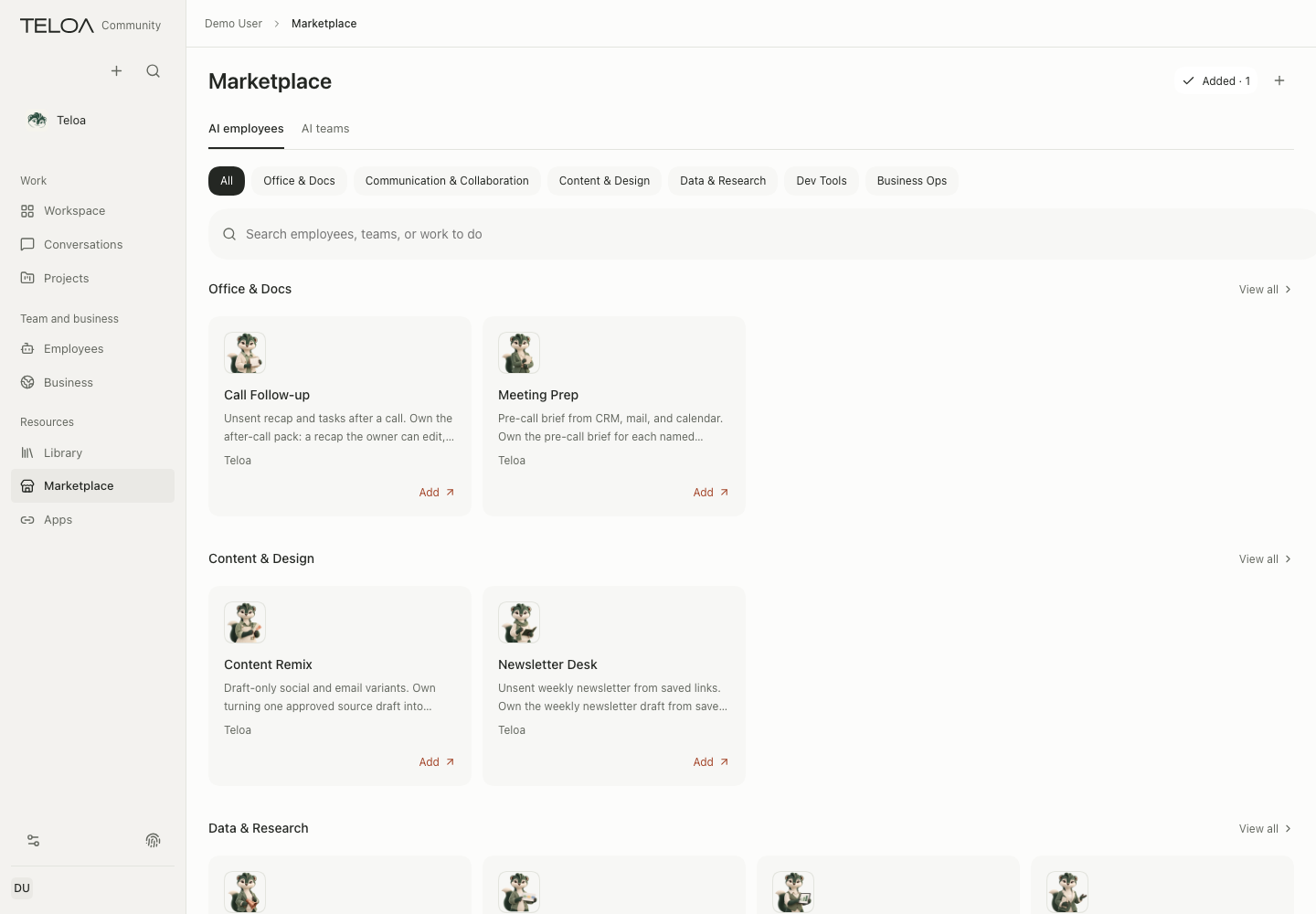
0.2.0-beta.3 interface with sample data. Switch between AI employees and AI teams at the top and browse cards by category. Added shows what you have added; the + menu creates employees or teams and imports templates and skills.
To import, select + at the top right. Import template reads a file (ZIP, JSON, and recipe.json are supported), a pasted template JSON, or GitHub, and saves only employee and team templates. Import Skill reads a single skill directory that contains SKILL.md.
Open a resource's details and review its purpose, contents, version, and dependencies. Before importing, confirm that it fits the current business area. Review the objects that the preview will add or link, then complete the import.
A business resource package may contain employees, skills, materials, and task templates. Employees imported from industry packages start paused. Open Employees to verify their resources and tool permissions before making them active.
Market categories and the official catalog
The market has two main directories at the top: AI employees and AI teams. A template with one employee is listed under AI employees; team templates with several employees, and business dashboards, are listed under AI teams. Add apps that connect to outside services, and skills, from Resources > Apps in the left navigation (Recommended, All, My apps). An app pack can install all of its skills at once, but it does not connect accounts or give employees access. Added · N at the top right summarizes what you have added, and the + menu creates an AI employee or AI team template, imports a template, or imports a skill.
Filter by Purpose, or search for employees, teams, or the work you want done. When install data is available, sort by Default, Most installed, or Trending. Official catalog entries show the catalog version, compatibility, and source.
AI employees. A card lists the employee's duties, its source template, and the skills it requires. Select Create employee to see What you get first: only this employee with its methods and materials is added, not the other employees in the same team. After you select Confirm and add, its methods are installed for this employee, the employee stays paused, and app connections and permissions still need your separate confirmation. The card then reads Created, paused by default, and afterwards Already added with a view action, which it keeps after a refresh. Adding it again does not create a second employee. If anything is unfinished, the card offers Continue adding and does not repeat finished parts. If you already have a method with the same name but different content, the employee is not added until you resolve that method. Check its duties, materials, and tool permissions, then resume it from the Employees page.
Models. A model entry that appears in search results is connection guidance only. It holds no API key and does not call the model for you. Each card shows the network requirement (Direct in mainland China, or Needs overseas network), a price band (low, mid, or high; aggregators show varies by model), and model names. Expand Source and license to see the terms link and license tier (Commercial use allowed, or Restricted use). Select Configure to open Settings > Models and enter the provider's API key there. Prices and context lengths follow the provider's current documentation.
You can also ask in a conversation, for example "add a SOC triage analyst for me". An employee resource shows a confirmation card first and creates the employee only after you confirm. A model resource only returns guidance to configure it in Settings and makes no changes.
Other sources and recommendations
Some entries come from reviewed outside sources such as GitHub and ClawHub; the card names the source and where its install count comes from. Being listed does not mean every resource from that source is included.
Other sources on a resource card lists related resources that can currently be viewed, with the recommendation first. Selecting a recommendation opens its details without adding or installing it. Going back preserves the original filters and search. Resources marked “Source reference only; cannot be added” are provided for provenance and cannot be installed from the card.
When an existing connection has an official replacement, its connection page shows a recommendation. Review the details, then add, configure and verify the new connection as needed. Registration or saved settings alone do not mean it is connected. Keys or authorizations, and employee permissions, must be configured again. Once the new connection works, you can disconnect and delete the old one yourself; Teloa does not automatically transfer permissions or remove the old connection.
Readiness and one-click setup
After you load a template, open its details and choose "See what it brought in". The "A few more steps before it works" panel sits below the details header. The first line, "x of y items to prepare are ready", counts only items that are ready, available for one-click setup, need you, or are in progress. Task templates and recurring plans are "Use when needed" items and are not part of the total.
- Set up in one click: shown only when some items are available for one-click setup. It first lists what it will do inside the page, grouped as enable knowledge, install skills, register connections and create employees, and runs only after you choose Confirm. Skills from the official catalog that are reviewed, contain only text and images, and need no network or execution tools install with one click; the confirmation lists each of them as "Installs with one click: name (publisher, license, …)". It then shows "Done a, in progress b, needs you c, failed d"; an employee that was created but stays paused because its linked items are not ready counts under "needs you". If something is still in progress, run it again to finish; running it again with no change to the checklist does nothing.
- Employees: one click only activates employees created in this run whose linked knowledge, skills and connections are all ready. Activating an employee also turns on its daily summary. An employee whose linked items are not ready stays paused after it is created. An employee that was already paused is never resumed automatically; the panel lists it under "Paused employees; review and resume them yourself".
- Needs you: skills with scripts, skills that need network or execution tools, skills not from the official catalog, extensions, connections that need keys or authorization, and items that failed are outside one-click. Each group is one line of titles with an Open button that switches to the matching group of the template, where you finish them with the existing controls; the panel refreshes as you install skills one by one in the Skills group.
- Use when needed: choose Open on a task template to create a task from it. Recurring plans consume model quota on every run, so you turn them on yourself.
You can also say "prepare the Knowledge and research template for me" in your own regular conversation. The assistant reads the readiness checklist first, then shows one confirmation card. The card lists the titles it will complete by group, lists each skill that installs with one click with its publisher and license, and states that the daily summary is turned on, that paused employees are not resumed, and that keys and authorization are entered only in the page and never sent in the conversation. After you allow it, the result matches the panel. Asking "is it ready?" afterwards only reads the checklist and shows no card. One-click setup is refused in task-run conversations and sub-tasks.
Check whether a resource is ready
Skill keys: configure supported, installed skills that declare required keys by opening the skill under Resources > Apps and choosing Keys. The model cannot read raw values through key interfaces. Teloa encrypts keys and injects them only for the declared targets. See skill API key configuration for storage, network limits, write approval and employee permissions.
The five candidates—X Search, Finance Search, Macro Data, CellCog and CellCog Image Generation—remain unsupported. Entering a key cannot enable them. Availability of the feature does not establish approval of a particular resource; check the support status in its details.
| Status or symptom | What to check |
|---|---|
| Added | Open the relevant management page to check links and configuration |
| Missing dependencies | Add the required resources listed by the package first |
| Version conflict | Compare existing content with the new version; do not overwrite local changes without reviewing them |
| Connection incomplete | Configure keys or authorization on the connection page and test it |
Export and share
Business dashboards: after adding a dashboard or a team template containing one, choose its target business area in the details. A new area receives a separate configuration. For an existing area, explicitly choose object mappings before preparing a configuration draft. Preview its records and dashboard pages, then adopt it personally. The resource does not replace existing fields or records. Incompatible fields, computations or references block adoption; Teloa does not guess data mappings. Dashboards calculate from currently saved business records. External alert connections, sync rules and employee tool permissions require separate setup.
The business page's sharing entry exports the authoritative configuration currently saved by the host. A dashboard resource includes objects, views, widgets, dashboards and pages with complete internal references. It excludes real records, keys, external source mappings, default business actions and existing permissions. After downloading a package or fixing it in the local market, the recipient still prepares a draft, previews it and adopts it. Downloading does not publish it to the official market.
The new SOC alert dashboard resource is not published and cannot be installed from the official catalog. The current release supports creating, previewing and adopting business configurations. Check each published template for its actual dashboard contents. Other industry examples explain composition and do not establish package availability.
When using the available export or package-sharing features, check whether the package contains private materials, keys, or templates that are not yours. Before sharing externally, import it into an isolated environment once to verify that its resources are complete.
Current resource browsing, import, and export features do not mean a complete public marketplace publishing service is available. Public publishing, paid distribution, and private marketplaces are covered separately in edition support.
Resource authors can read the business resource package format.