
3.9 Prepare and use reference materials
Manage reference content in Library, then link the required materials to a business area, employee, or task. Uploading a file does not by itself authorize every employee to read it.
Add materials
- Open an ordinary conversation from Library > Add in a conversation. Send the complete source text first, including its source, date and version.
- Send a separate instruction, for example: “Save my previous message as work material, titled Lumen launch brief, category business context, topic Lumen.” The current save instruction itself is excluded from saveable messages.
- Confirm that saving succeeded, then return to Library, refresh and open the material to check its content. To revise it, choose Edit and then Save new version.
- Select the material under an employee’s Knowledge and capabilities, or attach it when assigning work. Saving materials to Library does not grant every employee access.
Use a fictional product brief for your first exercise. Group attachments and Library materials have separate storage paths; a successful upload does not mean the content was saved to Library.
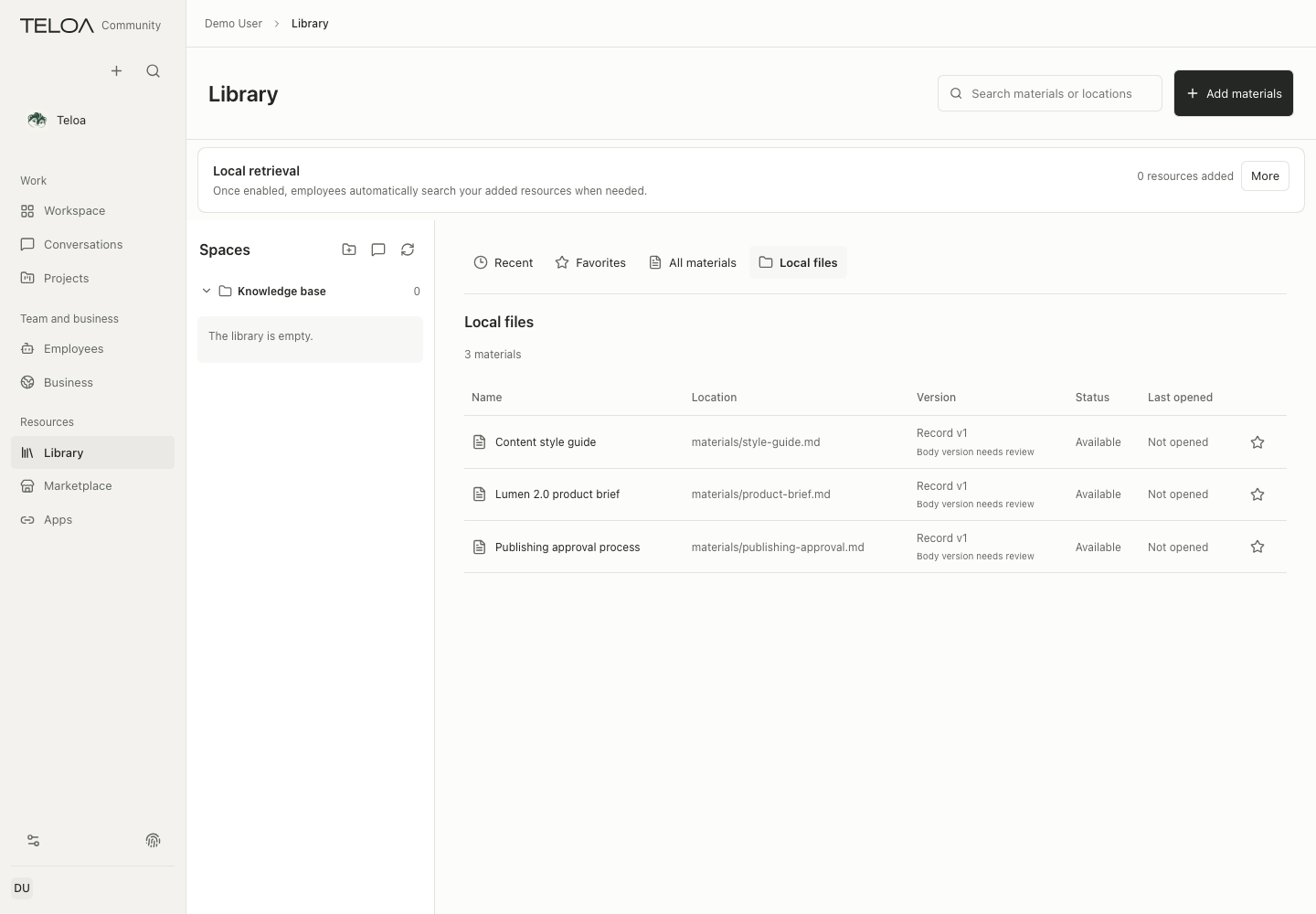
0.2.0-beta.3 interface with sample data. Materials registered with Track a local file appear on the Local files tab with their location, version and status. Only materials added in a conversation are listed in the knowledge space on the left, which is empty here.
Track a local Markdown file
Choose Track a local file from the add menu in Library. Enter a title and a path relative to the current working directory, such as notes/product-brief.md. Submit it, then open the material under Local files and check its content.
This action registers only the .md or .markdown original you explicitly select, with permission for the current working directory. It does not scan the whole disk or index arbitrary PDFs, Word documents, or other formats through this entry. Paths outside the directory, hidden paths, and symbolic links are not accepted. Registering a file, linking material, and granting an employee access are separate steps.
“Local” means the device running Teloa. With Docker, the file must be in an authorized working directory accessible inside the container. On a server deployment, it means that server, not the computer viewing the page.
Enable local indexing and search
- Open a registered material under Library > Local files and choose Add in the Local retrieval area.
- On first use, follow the prompt to enable local retrieval, review the search model and download details, then explicitly confirm preparation. You can also choose a model in Search settings in the retrieval area; see Configure models and keys. Opening the page alone does not download a model.
- Wait until the material is indexed, then ask a question in a conversation authorized to read it, for example: “Summarize the release conditions in this product brief and cite the original.” Employees can search when needed; open the answer's material citations to check the original.
Search covers only enrolled material that the current conversation can read. Changed originals are indexed again; material still waiting for indexing or currently unavailable is not counted as searched. Ordinary conversations follow their business scope. Tasks also need the relevant tool and material permissions; registering a file or adding it to the index does not expand access. Subagent conversations cannot currently use this local retrieval tool.
Remove material from retrieval in the retrieval area, or choose More > Rebuild index to index it again. Results include bounded excerpts and original locations; they do not guarantee complete coverage or accurate matches every time.
Embedding and indexing run on the device hosting Teloa. Initial preparation needs an internet connection to download public model files. Retrieved excerpts are used in the current chat and may be sent to its remote chat model. A local index does not mean all conversation processing stays local; see Privacy and permissions.
Use materials in a task
Specify the required materials when assigning work and ask for sources in the result. For group attachments, confirm that the upload succeeded before asking an employee to read the file. Attachments and Library content are stored differently; see group collaboration.
When a source changes or becomes unavailable
A task may lock a particular version or reference identity. If the source changes, is withdrawn, or is no longer permitted, follow the prompt to check the source again. Do not ask the model to guess missing content.
| Symptom | Next step |
|---|---|
| The material is visible but a task cannot read it | Check the task and employee scopes, links, and permissions |
| A task still cites old content after an update | Check the version and reference locked to this task, not just the filename |
| An attachment upload failed | Check the page for format, size, or network errors; confirm success before assigning the work |
| A result has no citations | Ask for sources and verify them against the original text |
Before deleting or withdrawing materials, check work that is using them. Do not import keys, authentication links, or unrelated private records into Library.