
1.4 Complete your first task
This exercise does not connect to external systems. You will use fictional material to produce a summary and a list of points to confirm.
Prepare
- Verify that the model can respond in a regular conversation.
- This exercise hands the task to an active employee. If you do not have one yet, create one with the employee guide, or simply give the same material to the assistant in a regular conversation.
- Use General work so your first exercise does not involve permissions for business tools.
Prepare the input
Copy this fictional material:
The sample product “Desktop Notes” supports local storage, tags, and Markdown export.
The trial lasts 14 days. Team sharing is still planned. This material does not provide an official price or release date.
Create and assign the task
Open Workspace > Tasks and choose Create with a form. The form fills in the current business area (General work here) and you as the owner, so you only need to put the material and these requirements in Work goal. Adjust the task name, primary scope, skills, or group under More options if needed:
Write a summary of no more than 200 characters based on the material provided.
Include: confirmed capabilities, information not yet provided, and points I need to confirm before publication.
Keep team sharing marked as “planned.” Do not guess the price, search the web, or publish anything externally.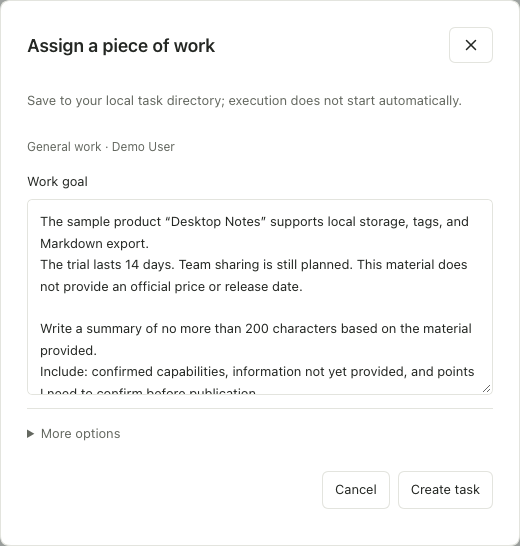
0.2.0-beta.3 interface with fictional product material. The form already fills in General work and you as the owner, so you only write the work goal; More options stays collapsed. Creating a task does not start execution.
After creating the task, open its details and assign the work:
- Choose Assign owner and select an active employee as the Successor employee.
- Fill in the required handoff note, for example: “Summarize the material as requested and keep the result in this task.” Then choose Confirm handoff.
- Choose Prepare run and review the goal, assignee, materials, skills, and run configuration.
- Once they are correct, choose Start and check the execution status.
Creating or handing off a task does not start it automatically. If you cannot prepare or start the run, address the reason shown on the page first.
Follow the execution
View the execution record and results in the task details. If something requires your attention, read the specific reason before choosing an available action. Do not repeatedly recreate tasks to bypass authorization failures.
Check the deliverable
Completion does not guarantee that the content is correct. Check four things: local storage, tags, and export are supported by the material; team sharing is still marked as planned; no price has been invented; and nothing has been sent externally.
When the run ends, the task shows “Awaiting your review of this result.” To close it, choose View deliverables, Save work results, Review result and Load outputs in turn, choose the version, then choose Complete task. The task then shows “Completed · Output finalized at v1.”
If the result falls short, select a section under the deliverable's Versions and feedback, write feedback, and choose Revise with AI when you want a new version. The original task and execution record remain so you can compare the changes. After completion, the finalized version is not overwritten in place; you can still give feedback and choose Revise with AI to create a new version, while finalized v1 and the task's ownership stay unchanged. Later, you can save the input and output requirements as a task template.