
3.6 Schedule recurring work
An automation suits clearly defined work that repeats. First validate the inputs, permissions, and results with a single task, then schedule it.
Create an automation
- In Workspace > Automation, choose New automation and describe what to do, how often, and who receives the result under “What should your employee keep doing?”.
- Choose Create in a conversation. The current business area is included. After you send it, the assistant asks only for details required to create or run the plan, such as the schedule, and drafts the plan. The current assistant can run the plan for you, or you can assign an active employee; you are asked about an employee only when one must be chosen. You can also choose Save as a plan on a result.
- On the draft card or in Needs your attention, choose Review and confirm plan, check the executor, trigger and time zone, data scope and delivery destination, then choose Save plan. New plans stay paused.
- To fill in every field yourself, choose Create with a form. After saving, check whether the plan is enabled; saving does not mean it is running.
The fields available depend on the schedule type and the current creation page. Do not paste a cron expression from another product into a field that does not support it.
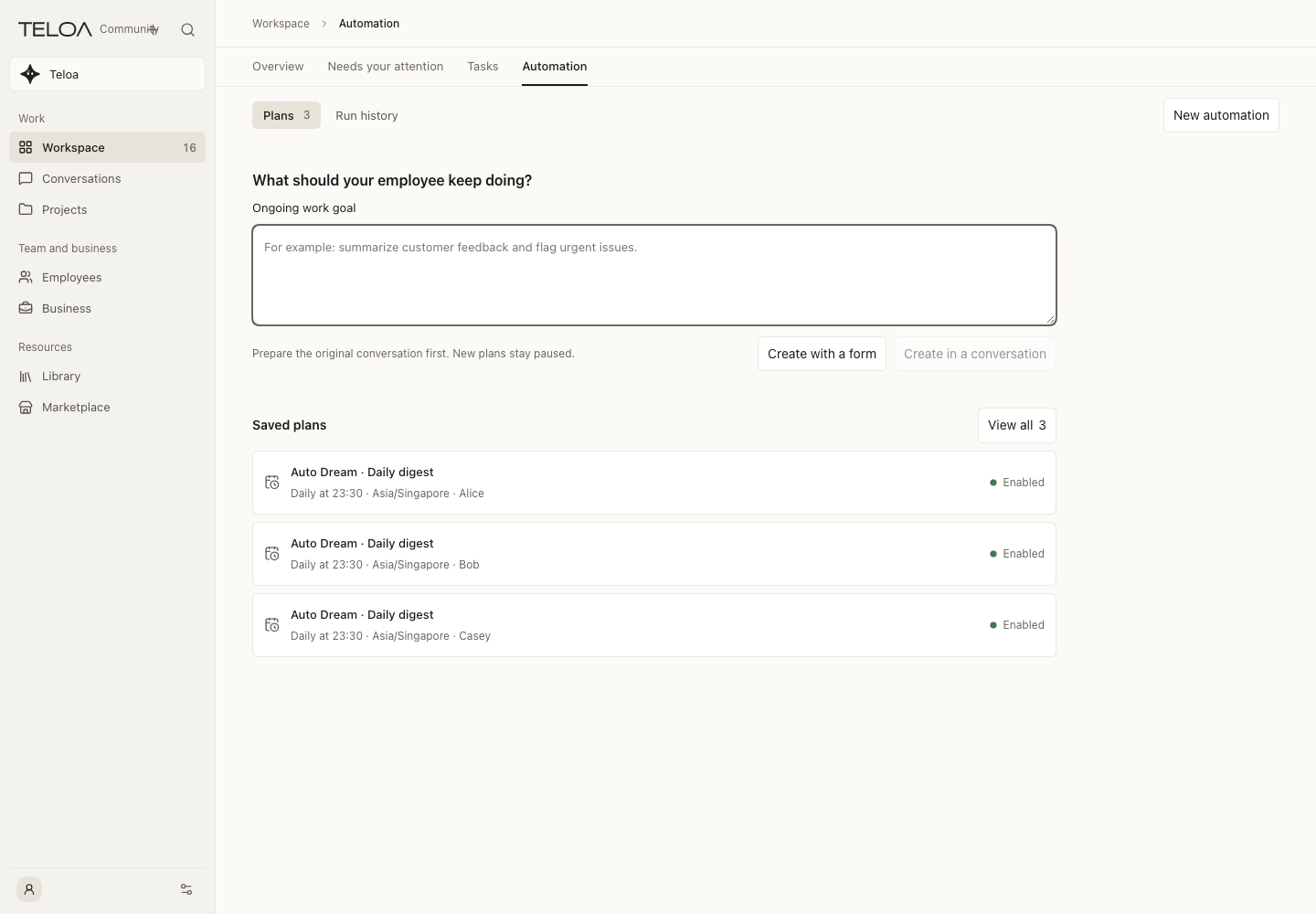
0.2.4 actual interface with example data. Saved daily-digest plans and the natural-language creation entry. Plan status does not prove a successful run history.
Try one run first
If the details page offers an immediate run, trigger it manually and inspect the run record and output. Verify the data sources and permissions it uses before enabling scheduled runs.
Follow up and pause
Review run history in the details page, distinguishing the schedule's status from the status of an individual run. Pausing controls future scheduling. It does not mean all work already started has ended; check ongoing work in its task records.
If it did not run on time
| What to check | Why it matters |
|---|---|
| Local service availability | Work cannot run while the computer is asleep or shut down, or after the service exits |
| Schedule enabled state and time zone | Your local time may differ from the schedule's time zone |
| Employee status and configuration | A paused employee or invalid configuration may prevent the work from starting |
| Data sources and tool permissions | Expired connections, unavailable materials, or withdrawn permissions can affect execution |
| Recent run records | The schedule may have triggered, but the run failed or is waiting for you |
Catch-up behavior after the service returns depends on the scheduler and its records. There is no guarantee that every missed run will be made up. Check history before running work manually to avoid duplicate external effects.