
3.4 Create and manage AI employees
Manage your AI employees on the Employees page. Before creating one, define what it is responsible for, what it should deliver, and what it must not do on its own.
An AI employee is a lasting identity with responsibilities, skills, employee memories, knowledge scope, and permissions. In the current release, it can organize a task team for the current task. Task assistants are temporary members: they do not automatically become employees or appear in the employee roster, and they cannot gain additional permissions. You create and manage employees; temporary delegation does not change their identities. See Collaboration concepts.
Create an employee
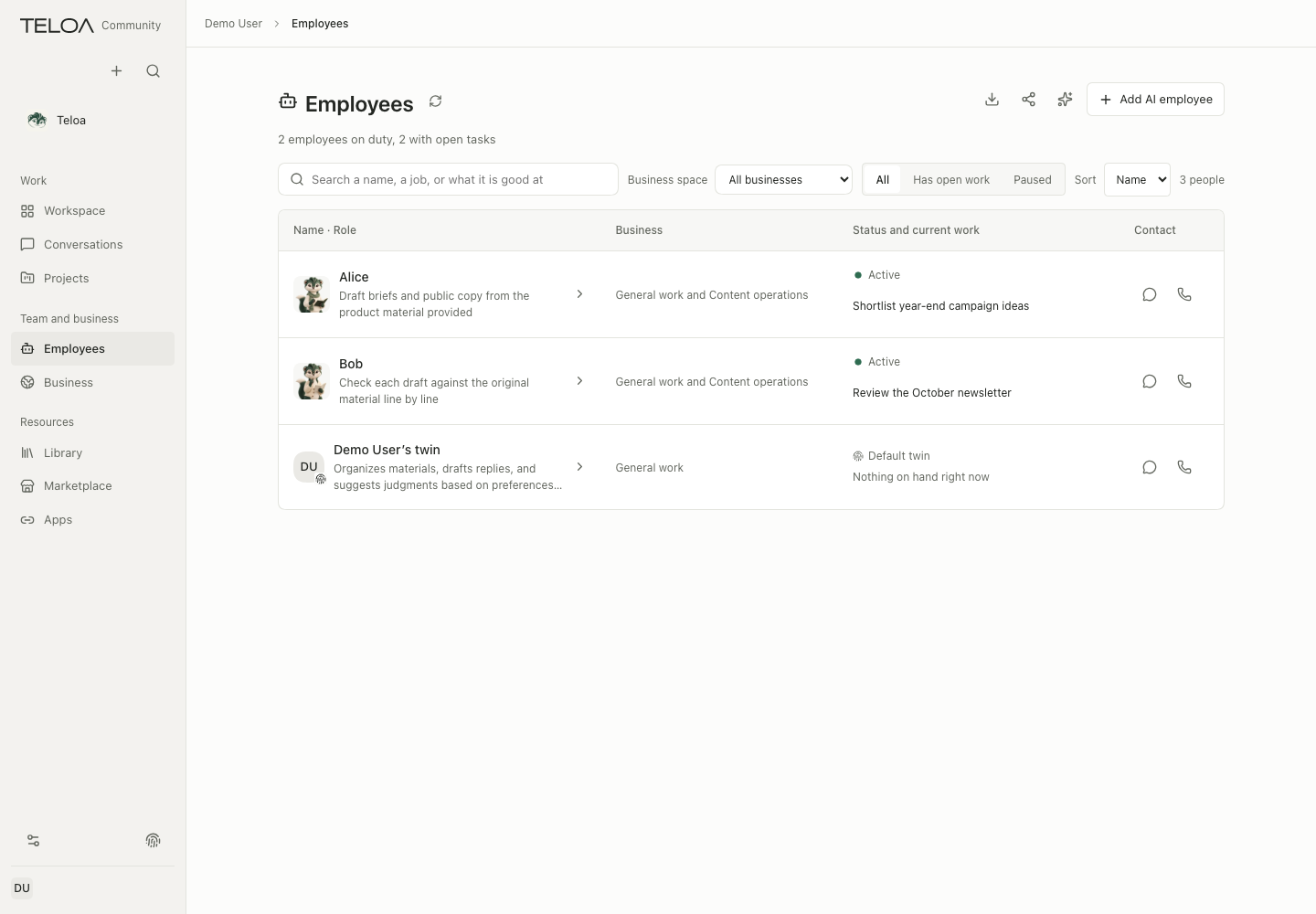
0.2.0-beta.3 interface with sample data. Add AI employee at the upper right starts the creation flow; the list shows each employee's business areas, status and current work.
On the Employees page, choose Add AI employee at the upper right. The wizard has four steps: Name and look, Role and skills, Working agreements, and Badge. Enter a name and choose a look. In Role and skills, choose Describe responsibilities (or Import role description / SOP), write the responsibilities into the role mission, and select the business scope. Expand Knowledge and capabilities to select saved knowledge and installed Skills. The description does not generate Skills or grant access. Finally, review the Badge step and choose Put it to work. For a research employee, you could use:
Organize the public materials I provide and produce a summary with sources.
Distinguish facts from inferences. List open questions where evidence is missing.
Do not send messages, publish content, or modify external systems.
New employees you create directly start active. Employees created from industry resource packages start paused. Review their resources and permissions before making them active.
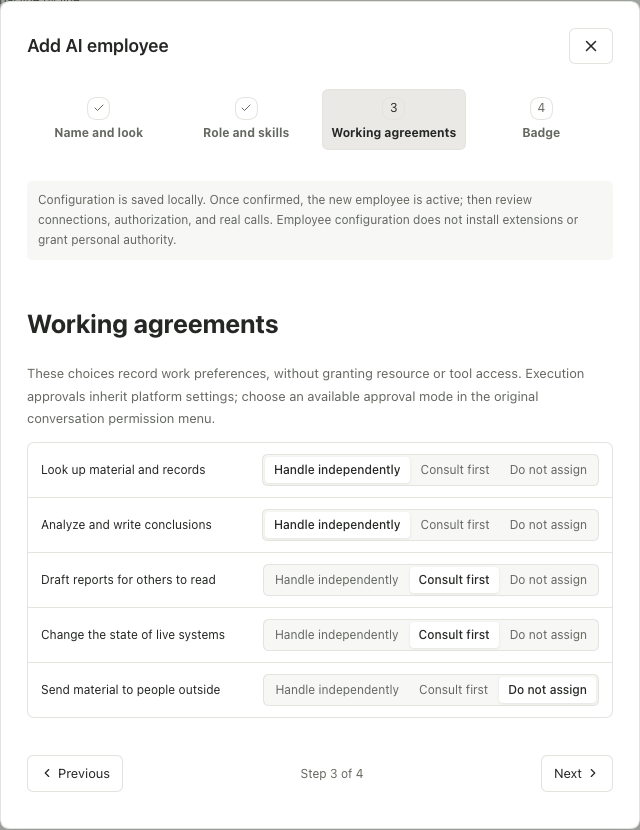
0.2.0-beta.3 interface with sample data. Choose Handle independently, Consult first, or Do not assign for each kind of work. These choices record work preferences and do not grant knowledge or tool access.
Link capabilities and materials
Open the employee's details and check ongoing work first. Edit the name, avatar and role mission from the edit button at the top of the details (finish related work before changing responsibilities). For business scope, materials, skills, tool access or run settings, pause the employee under … > Employee management, then choose Edit responsibilities and scope. A paused employee does not prove that all tasks already in progress have stopped.
Configure the required skills, materials, and tools. A visible resource may not yet be linked, and a linked resource may not have execution permission. Check each item using the feedback on the page, then resume the employee.
Talk to an employee
Choose Chat at the top of the employee's details (“Chat with it” on each row of the employee list also works). The current release supplies the role definition to the model as background context. You can ask your question directly without first sending a role description. The conversation history retains the message you actually sent.
After a role edit, subsequent requests use the current definition. Pausing stops new assignments and allows configuration changes; history and conversation remain available. If the employee is retired or the conversation link changes, follow the page guidance to select the conversation again. Role context grants no additional tool or material permissions.
Activate, pause, and retire
| Action | When to use it |
|---|---|
| Make active again | Configuration has been verified and the employee may receive new work |
| Pause | Temporarily stop accepting work, or adjust the employee and its tool configuration |
| Retire | Stop using this employee; first check related work and the guidance on the page |
After saving, test with a small task that does not write to an external system. If it fails, check the run configuration, material scope, and tool permissions. Granting every permission is not a general fix.